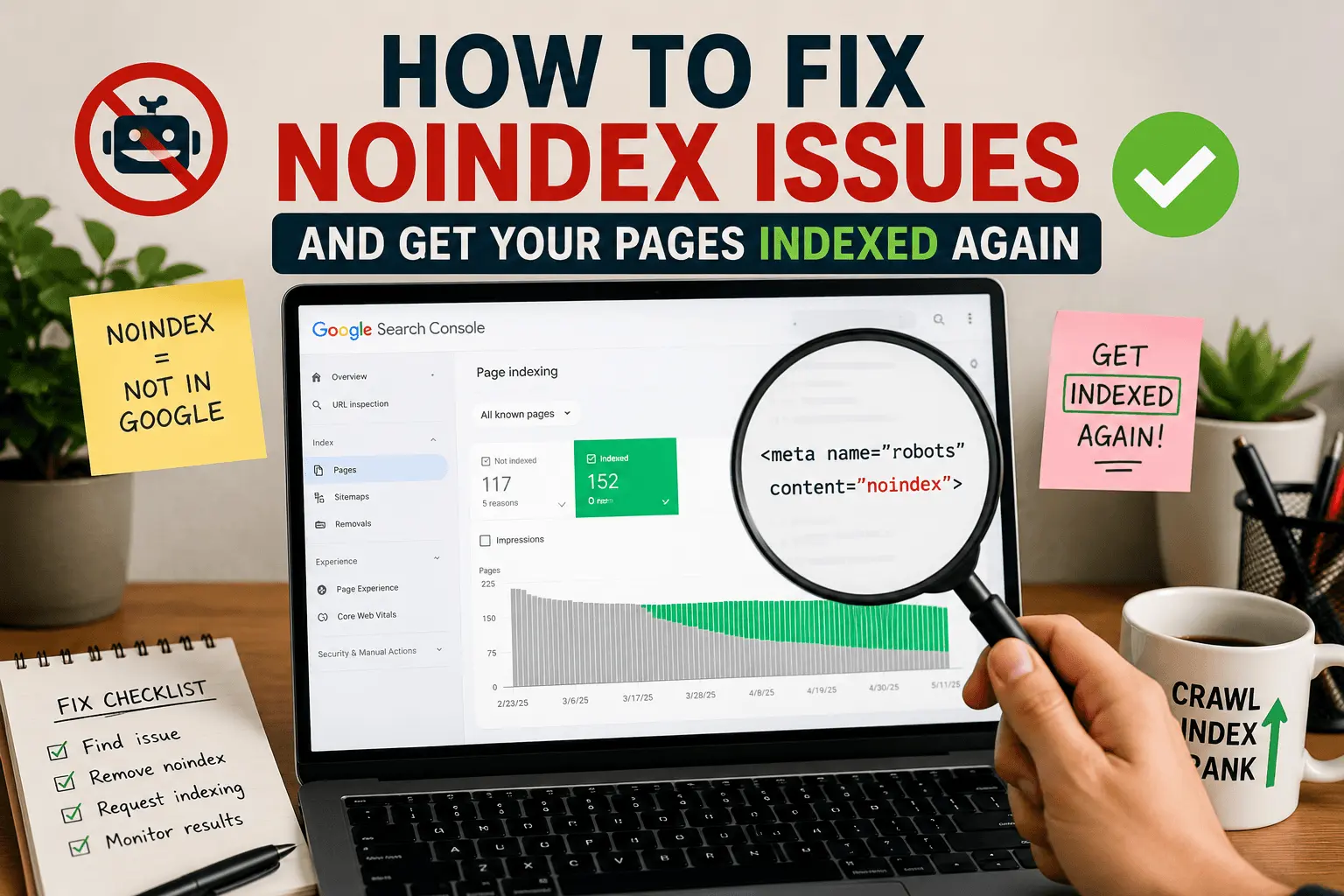
Nothing like checking Search Console and seeing a bunch of your pages sitting in the "Excluded" bucket. The reason? "Page excluded by noindex tag."
You didn't mean to block those pages. But there they are. Dead to Google.
Knowing how to fix noindex issues isn't complicated once you know what you're looking for. The annoying part is tracking down where the tag is hiding and why it got there. I've dealt with this enough times that it's almost boring now.
Honestly, noindex problems are usually easier to fix than "Crawled — currently not indexed." At least Google is telling you what's wrong. The other one just leaves you guessing.
What a Noindex Tag Actually Is
A noindex tag is a small line of code that lives in a page's HTML head section. It looks like this:
<meta name="robots" content="noindex">
There's also a version that shows up in HTTP headers, which is harder to spot:
X-Robots-Tag: noindex
Search engines see this and obey it almost all the time. The page stays out of results. Useful for thank-you pages, internal search results, admin pages. Stuff you don't want cluttering up Google.
The problem starts when that directive ends up on pages you actually want indexed. Blog posts. Product pages. Your homepage, even. I've seen that happen. The traffic drop is immediate and sickening.
Featured snippet definition:
A noindex tag is a meta directive that tells search engines not to include a specific page in their search index. When Google encounters a noindex tag in the page's HTML or HTTP header, it typically excludes that page from search results entirely. Noindex issues occur when this tag accidentally appears on pages you want indexed, cutting off organic traffic completely until the tag is removed and the page is recrawled.
How to Know If Noindex Is Your Actual Problem
Before you start changing settings, make sure this is really the issue. Pages get excluded for lots of reasons. Crawl budget limits. Duplicate content. Content that Google decided isn't worth indexing. The fix is different for each.
Check Google Search Console First
Search Console tells you exactly which pages are excluded and why. The report you want is under Indexing > Pages. Look for entries that say "Excluded by noindex tag." Those are your targets.
Click into that row and you'll see a list of affected URLs. Export the list. You'll want it handy while you fix things.
If you see pages marked as "Crawled - currently not indexed" without mentioning a noindex directive, that's a different headache entirely. Usually a content quality signal. Focus on the ones explicitly blocked by noindex first.
Spot Check Pages Manually
Open a page you think has the issue. Right-click, view page source. Search for "noindex." If you find that meta tag anywhere in the <head> section, there's your problem.
For the HTTP header version, open browser developer tools and check the Network tab. Look for X-Robots-Tag: noindex in the response headers. Less common, but it happens. And it's easy to miss because it won't show up in the page source at all. I spent three hours once debugging a site only to find a CDN was injecting the header upstream. Maddening.
Run a Bulk Audit
If you have more than a handful of pages, don't check them one by one. That'll drive you crazy. Use a crawler. Screaming Frog if you already use it. Our free indexability checker for quicker scans without setting up a full desktop crawl. Either one works.
Where Noindex Tags Usually Hide
This is usually where things get annoying. The tag could be coming from several places, and sometimes more than one at once.
That WordPress Checkbox Everyone Forgets
WordPress has a single checkbox that noindexes your entire site. It's under Settings > Reading > Search engine visibility. The label says "Discourage search engines from indexing this site."
This is meant for staging sites. The problem is someone turns it on while building, launches the site, and forgets it exists. I've done this exactly once. The traffic chart looked like a cliff. A very sad, downward cliff.
Check this setting first if you're on WordPress. Takes five seconds. If the box is checked, uncheck it. Then immediately go verify it actually worked. Don't just assume.
SEO Plugin Settings You Didn't Know Existed
Yoast, Rank Math, All in One SEO. They all have per-page noindex controls, and they all have global settings for content types you might never have looked at.
In Yoast, each page and post has a meta box under the "Advanced" tab. There's a dropdown that says "Allow search engines to show this page in search results?" If it's set to "No," that's adding a noindex tag. One stray click from a content editor and suddenly your best blog post is invisible.
But the bigger trap is the global settings. Under Yoast > Settings > Content Types, you can noindex entire content types at once. Posts. Pages. Custom post types. If someone checked "noindex" for posts here, every single post on your site is blocked. Every. Single. One. I've seen people chase their tails for days before finding this. It's always the last place they look because it doesn't occur to anyone that a setting that broad could be the problem.
Theme Files With Surprises
Some themes have noindex tags hard-coded into the header template. Older themes especially. Custom themes built by developers who thought they were being helpful.
If you can't find the tag in your CMS settings or plugins, check your theme's header.php file. Look for that <meta name="robots" content="noindex"> line. If it's there, someone left it in by accident or your theme shipped with it.
This one's annoying because nothing in your dashboard will show it. You just have to dig into the code and look.
HTTP Headers From Your Server or CDN
This is the sneaky one. Some hosting setups and CDNs add noindex headers at the server level. It shows up as X-Robots-Tag: noindex in the HTTP response and never appears in your page source.
You can confirm this in Search Console using the URL Inspection tool. It'll tell you if Google detected a noindex directive in the HTTP response rather than the HTML. If that's what's happening, you need to talk to your hosting provider or dig into your server config.
Cloudflare and some managed WordPress hosts do this sometimes. It's usually some "security" setting someone enabled without understanding what it actually does.
Robots.txt Confusion
Quick note because people still ask about this. Google stopped supporting noindex directives in robots.txt back in 2019. If you have noindex rules in your robots.txt file, they're not doing anything for Google specifically.
But here's the thing. If someone added those rules thinking they would work, there might be noindex tags elsewhere too. Worth checking our free robots.txt tester to see what your file actually says. Just to rule it out.
How to Fix Noindex Issues: What Actually Works
Alright. You found the tag. Here's what to do.
1. Remove the noindex directive from wherever it's coming from.
WordPress setting? Uncheck the box. Yoast per-page setting? Switch it to "Yes." Hard-coded in a template? Remove or comment out the line. HTTP header from the server? Contact your host or fix your CDN config.
Be specific about what you're removing. Don't just disable a plugin and hope. Know exactly what was adding the tag and confirm it's gone.
2. Verify the tag is really, actually removed.
Open the page source again. Search for "noindex." Make sure it's gone. Then run the URL through Search Console's Inspection tool. It'll show you what Google currently sees. If it still says "noindex detected," the tag is still there somewhere. Keep looking.
Do this for every affected URL. Fixing one page doesn't mean you fixed them all.
3. Check you're not also blocking the page some other way.
While you're in there, make sure the page isn't blocked by robots.txt, isn't canonicalized to a different URL, doesn't have other indexing conflicts. Pages can have multiple issues layered on top of each other. Fix everything at once so Google sees clean signals.
4. Submit the page for reindexing.
Go back to Search Console. Use the URL Inspection tool on the fixed page. Click "Request Indexing."
Sometimes Google picks it up in a few hours. Sometimes it acts like your request never existed and you wait a week. There's no consistent timeline and Google won't explain why. It's one of those things you just accept after a while.
If you have lots of affected pages, submit the sitemap that contains them. Go to Indexing > Sitemaps and resubmit. Our free XML sitemap generator helps if you need a fresh one.
5. Wait. Then check again.
Give it a few days. Look at the Indexing report in Search Console. Pages that were in the "Excluded by noindex tag" bucket should start moving into "Indexed."
If a week passes and nothing's changed, run through the checklist again. The tag might still be active somewhere you missed. Or there's a different issue keeping the page out. I've gone through three rounds of checking before finding a stray HTTP header a CDN was injecting. It happens more often than you'd think.
Mistakes That Keep You Stuck
I've watched people go in circles on this. Here's what usually trips them up.
- Removing the HTML meta tag but missing the HTTP header version that's still active somewhere upstream.
- Fixing the homepage and assuming everything else is fine. Noindex tags on category pages or individual posts get overlooked constantly because nobody thinks to check them.
- Clicking "Request Indexing" without confirming the tag is actually gone. Google recrawls, sees the tag still there, and nothing improves. Then you think indexing is broken when really you just didn't finish the fix.
- Forgetting the staging site exists. A staging environment with noindex turned off gets indexed and suddenly you have duplicate content problems on top of everything else.
- Updating settings in one place without checking if something else is overriding those settings. WordPress can have three layers of conflicting directives. Plugin says one thing, theme says another, server header says a third. You have to check all of them.
- Checking settings, seeing everything looks right, and giving up. Sometimes you need to actually resave settings even if they look correct. Plugins occasionally show one thing in the interface and output something different in the code. Resaving forces a refresh. It shouldn't be necessary, but sometimes it is.
Tools That Make This Less Painful
You don't need much. A few things speed things up.
- Google Search Console. You'll spend most of your time there anyway. The URL Inspection tool and Indexing report are where the answers usually live.
- Screaming Frog if you already use it. Crawls your site and flags every noindex tag, robots.txt block, and canonical issue in one go.
- Free indexability checker for quicker scans without the desktop setup.
- Free robots.txt tester to confirm your robots.txt isn't adding to the problem.
- Free SEO checker catches broader technical issues that might be affecting indexing alongside the noindex problem.
How This Keeps Happening in the First Place
Once the immediate fire is out, a little prevention saves you from doing this whole process again in six months.
Run a meta tag audit every few months. Doesn't take long. Crawl the site, export the data, skim for anything unexpected. Before launching any site, check the WordPress search engine visibility setting three times. I'm not being funny. Check it three times. The first time I skipped this step, I lost two weeks of indexing on a brand new site. Two weeks of zero traffic because of one checkbox.
If other people publish content on your site, spend ten minutes showing them what the noindex checkbox does. Most accidental noindex tags come from people clicking things they don't understand. Not their fault. The labels aren't always clear, and "noindex" doesn't exactly explain itself to someone who's never done SEO.
Before any major plugin or theme update, grab a backup. Updates occasionally reset settings to defaults, and defaults sometimes include noindex. Rare, but annoying enough that backing up is worth the thirty seconds it takes.
If you're working on a staging site, use HTTP authentication or IP restrictions instead of site-wide noindex to block search engines. Staging sites with noindex turned off get indexed all the time. Then you're cleaning up duplicate content instead of working on the actual project.
The Bottom Line
Noindex issues look worse than they are. The fix itself is simple. Find the tag, remove it, request indexing, wait. The hard part is finding where it's coming from, especially when multiple things are adding it at once.
Work through the sources methodically. Check the obvious places first. WordPress settings. Plugin configs. Verify the tag is gone before asking Google to recrawl. Don't skip that verification step. I've skipped it. It wastes time.
If you're in the middle of this right now, start with our free indexability checker to map out how many pages are affected. Then trace each one back to its source. Most of the time it's a checkbox you forgot existed.