Robots.txt for Wix: What You Actually Need to Know
Wix has come a long way with SEO. But the robots.txt situation on Wix is different from WordPress or Shopify, and that catches people off guard. You don't ge...
What You'll Learn
The robots.txt file for Wix works differently than on most other platforms. Wix automatically generates and manages the core rules for you, which means you can't directly edit the raw file like you would on WordPress. Instead, you control what search engine crawlers can access through Wix's SEO settings dashboard and by managing individual page visibility. Understanding how this system works helps you avoid Wix indexing issues and keeps Googlebot focused on your important pages.
Quick Answer: Can I Edit the Robots.txt File on Wix?
You cannot directly edit the raw wix robots.txt file like you can on WordPress or Shopify. Wix automatically generates and manages it. However, you can control what search engines see through the Wix SEO dashboard, individual page settings, and the robots.txt editor tool that lets you add custom rules. It's a managed approach rather than a hands-on one.
How Wix Handles Your Robots.txt File
When you build a site on Wix, the platform creates a default robots.txt file behind the scenes. It automatically blocks things like admin pages, system files, and internal search results. This is actually helpful for beginners because Wix handles the technical basics without you touching a thing. But it also means you're working within Wix's framework rather than having complete freedom.
The default Wix setup usually blocks crawling for Wix-specific internal folders like /_api/, /_partials/, and /_functions/. These are system directories that have no SEO value. Most Wix users never even know these exist, and honestly, that's fine. The platform handles them without you needing to worry.
How to Edit Your Robots.txt in Wix
This is where things get interesting. Wix does give you a way to add custom rules, but it's buried in their SEO tools. Here's how you access it.
Using the Wix Robots.txt Editor
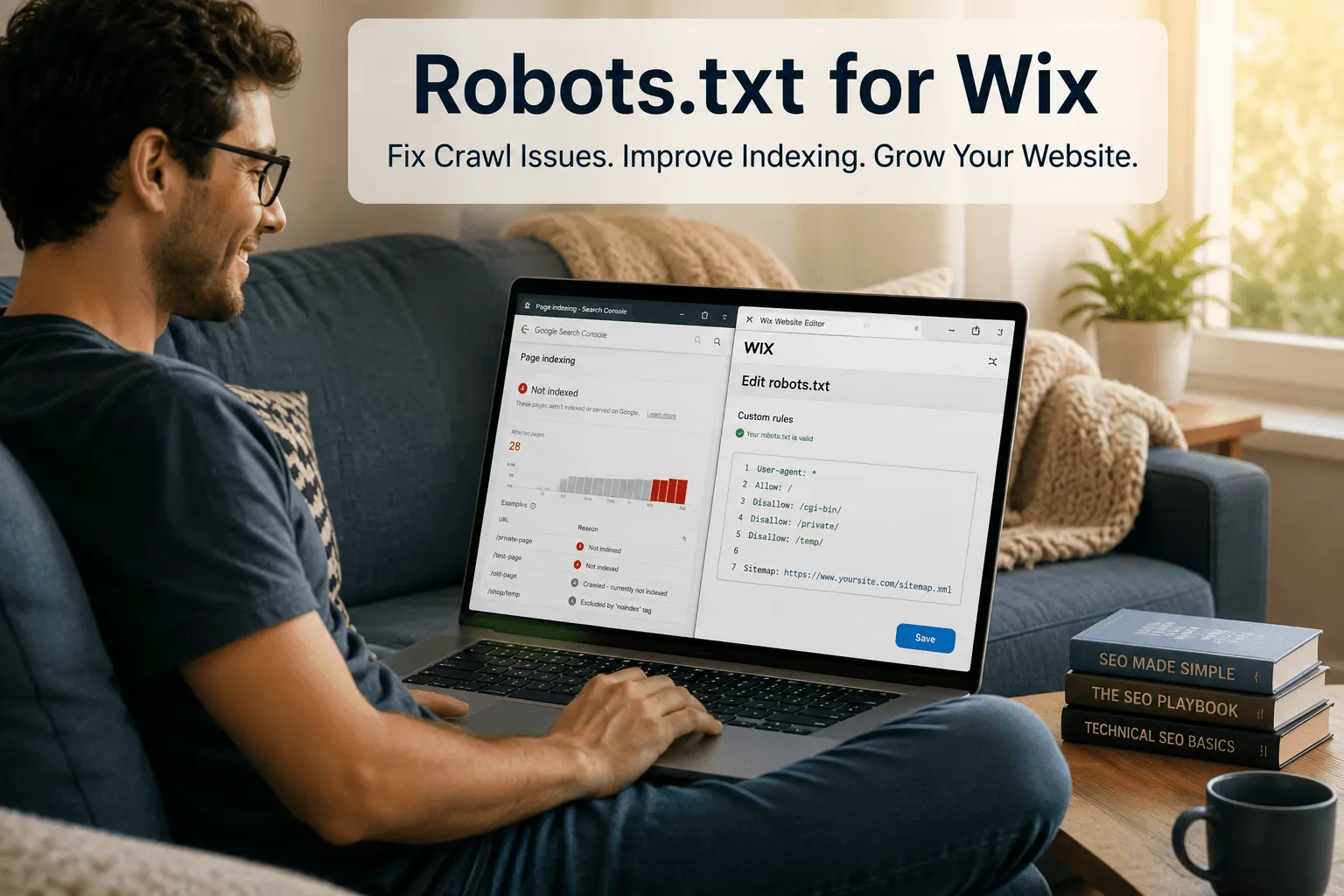
Go to your Wix dashboard, then navigate to Marketing & SEO > SEO > Tools & Settings. You'll find the robots.txt editor there. This tool lets you add custom directives that get appended to Wix's auto-generated rules. You can add disallow rules for specific paths or block certain user agents. The changes usually go live within minutes.
One thing worth noting: Wix shows you the full robots.txt file in preview mode within the editor. You can see exactly what Googlebot sees, including the system rules you can't modify. This transparency helps—you know whether your custom rules are working or conflicting with something Wix already set.
Controlling Page Indexing Without Touching Robots.txt
Most Wix indexing issues don't actually need a robots.txt fix. Wix gives you simpler tools to manage what search engines see. Every page on your Wix site has a visibility toggle in the page settings. If you want to hide a page from search engines, you can toggle it off right there. Wix then adds a noindex meta tag to that page automatically.
This approach is cleaner than using robots.txt in many cases. Remember, robots.txt stops crawling but doesn't guarantee de-indexing. The noindex tag tells search engines directly to remove a page from results. For most Wix users trying to hide thank-you pages, landing pages, or outdated content, the page visibility toggle solves the problem without touching robots.txt at all.
Wix and XML Sitemaps: How They Work Together
Wix automatically generates an XML sitemap for your site and includes it in your robots.txt file. You'll typically find it at yoursite.com/sitemap.xml. The sitemap helps Googlebot discover all your pages, while the robots.txt file makes sure it doesn't wander into places it shouldn't. They're designed to work together smoothly on Wix without manual coordination.
However, occasionally a page you've hidden with the visibility toggle still appears in your sitemap for a short time. Wix usually syncs this within 24-48 hours, but it's worth checking if you notice Google indexing a page you thought you hid. Visit your sitemap URL and confirm the page isn't listed there.
Common Wix Indexing Problems and Their Fixes
Honestly, most Wix indexing problems I've debugged weren't actually robots.txt issues at all. They were usually one of these things: the site wasn't connected to Google Search Console, the sitemap wasn't submitted, or individual pages had visibility accidentally turned off. But when robots.txt is the culprit, it's almost always because someone added a broad custom rule that blocked more than intended.
Another thing worth checking: Wix sites sometimes have duplicate URLs due to URL parameters from marketing campaigns or tracking codes. If you're seeing duplicate content issues in Search Console, check whether you need to add parameter handling rules or canonical tags rather than aggressive robots.txt blocking.
Wix SEO Settings That Affect Crawling
Beyond the robots.txt editor, Wix has several SEO settings that influence how search engines interact with your site. The "Let search engines index your site" toggle is the big one—if this is accidentally turned off, your entire site disappears from Google regardless of what your robots.txt says. I've seen this happen multiple times after site redesigns where someone clicked the wrong button.
The structured data markup settings, meta tags editor, and URL slug customization all play supporting roles. They don't directly change your robots.txt, but they affect how Googlebot interprets and indexes your pages. Good structured data helps Google understand your content; clean URL slugs make crawling more efficient.
Detailed Explanation
Understanding Wix's Default Robots.txt Rules
Wix generates a fairly comprehensive default robots.txt that covers most bases. It blocks system directories, API endpoints, and internal functionality pages that have no business showing up in search results. The platform also automatically adds your sitemap location. If you visit yoursite.com/robots.txt, you'll see a mix of Wix-managed rules followed by any custom rules you've added through the editor. The system rules are clearly marked, so you know which ones you can't touch.
What Happens When You Add Custom Robots.txt Rules
When you add rules through Wix's robots.txt editor, they get appended to the end of the auto-generated file. This matters because order can sometimes affect how crawlers interpret conflicting rules. Wix generally places your custom rules after their system rules, which works fine for most scenarios. Just be aware that you can't override a Wix system rule with a custom one—the platform's rules take priority if there's a conflict.
Wix Crawl Budget Considerations
For most small to medium Wix sites, crawl budget isn't a real concern. Googlebot can easily crawl your entire site without breaking a sweat. But if you have a larger Wix site—say, hundreds of pages, a blog with frequent updates, or a store with lots of product variations—then managing crawl efficiency becomes more relevant. The automated rules Wix provides handle the basics well enough. Focus your energy on keeping your sitemap clean and your internal linking structure logical rather than obsessing over robots.txt micro-optimizations.
Debugging Robots.txt Issues on Wix
If you suspect your robots.txt is causing problems, start by visiting yoursite.com/robots.txt in a browser. Look for any custom rules you added that might be too broad. Then check Google Search Console's robots.txt tester—paste in specific URLs you're worried about and see whether they're blocked or allowed. The tester shows you exactly which rule is blocking a URL, which makes debugging much faster than guessing.
Examples
Blocking a Specific Folder on Wix
If you've created a folder with private content like client portals or internal documents, you can block it from crawling.
User-agent: *
Disallow: /client-portal/
Disallow: /internal-docs/Blocking AI Crawlers on Wix
If you want to prevent AI training bots from scraping your Wix content, you can add user-agent specific blocks.
User-agent: GPTBot
Disallow: /

User-agent: CCBot
Disallow: /Handling URL Parameters on Wix
Wix sometimes generates URLs with tracking parameters that create duplicate content in search results.
User-agent: *
Disallow: /*?utm_source=*
Disallow: /*?fbclid=*
Disallow: /*?gclid=*Restoring Default Wix Robots.txt Settings
If custom rules are causing problems, Wix lets you reset to the default configuration quickly.
# Remove all custom rules from the editor
# Wix system rules remain unchangedBest Practices
Wix's built-in page visibility toggle adds a proper noindex tag, which is more effective than blocking crawling. Use robots.txt only for folders or patterns you can't control through visibility settings.
Use Google Search Console's robots.txt tester immediately after adding any custom rules. Check both the URL you want to block and URLs you want to keep accessible.
Wix handles most technical SEO basics automatically. Only add custom rules when you have a specific problem that needs solving. More rules mean more chances for mistakes.
Visit <code>yoursite.com/robots.txt</code> monthly. Confirm it's showing what you expect, and that no recent platform updates or accidental edits changed anything.
Make sure your sitemap is listed in the robots.txt file and accessible. Wix adds it automatically, but it's worth confirming it's there and loading correctly.
Wix's default rules leave these accessible. Don't add custom rules that block assets Googlebot needs for rendering. It can hurt your rankings in mobile-first indexing.
Submit your sitemap through Search Console and monitor the Index Coverage report. If you see pages blocked by robots.txt that shouldn't be, you'll catch it there first.
Keep a note somewhere of what custom rules you added and why. Months later when you're troubleshooting something else, you'll thank yourself for the documentation.
Common Mistakes to Avoid
People sometimes add <code>Disallow: /</code> thinking it blocks a specific page. That single slash blocks your entire site from all crawlers. Your traffic flatlines within days.
Hiding a page from search results via visibility settings and then also blocking it in robots.txt creates a messy situation. Pick one approach and stick with it.
A rule like <code>Disallow: /blog</code> (without trailing slash) also blocks <code>/blog-post-title</code> and <code>/blogging-tips</code>. Always use <code>/blog/</code> with the trailing slash to match only the directory.
If you have a separate staging or test Wix site, make sure search engine visibility is turned off in its settings. The robots.txt editor there should block everything or the site toggle should be off.
When Search Console reports 'Indexed, though blocked by robots.txt,' it means you have a conflict. Fix it promptly rather than letting pages sit in limbo for months.
Pro Tips
Check Your Robots.txt After Major Wix Updates
Wix occasionally updates its platform. After major updates, verify your robots.txt still shows what you expect. Platform changes sometimes reset custom configurations.
Use the Preview Mode Before Publishing
Wix's robots.txt editor includes a preview feature. Always preview your complete file before saving changes to catch obvious problems like syntax errors or unintended blocking.
Submit Individual URLs for Re-crawling After Fixes
If your robots.txt accidentally blocked important pages, fix the rule first, then use Search Console's URL Inspection tool to request re-crawling of those specific pages.
Pair Robots.txt Blocks With Canonical Tags Where Possible
For duplicate content issues, a canonical tag pointing to the original page works better than a robots.txt disallow. The canonical consolidates ranking signals; the disallow just hides the problem.
Frequently Asked Questions
Ready to Optimize Your SEO?
Use our free tools to audit and improve your website instantly