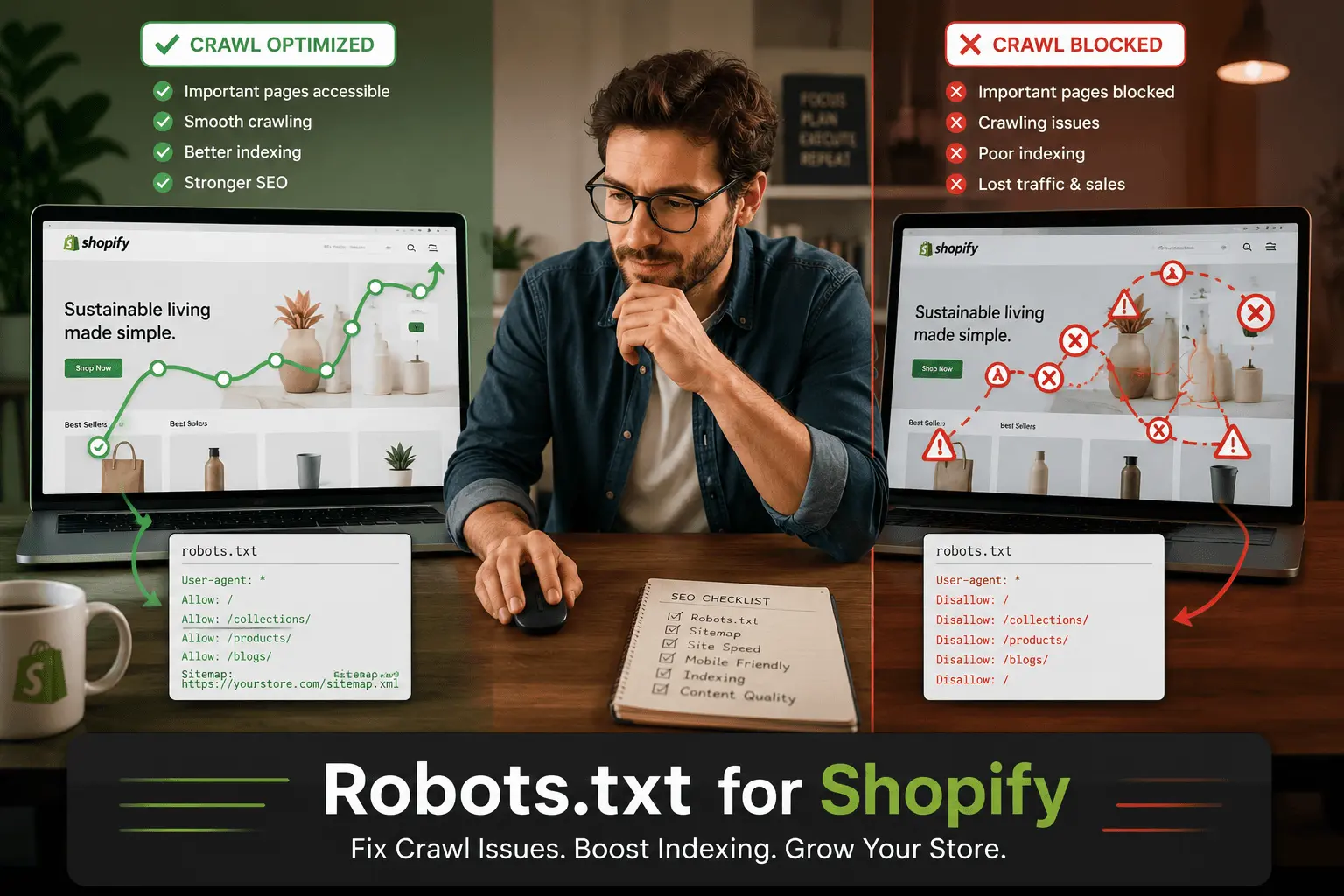
Robots.txt for Shopify: A Practical Guide
Editing the robots.txt for Shopify feels a bit different than a standard WordPress site. You don’t just FTP in and tweak the file directly. Shopify generates...
What You'll Learn
Your Shopify robots.txt file acts as a gatekeeper. It tells search engine bots like Googlebot which parts of your store to scan and which parts to ignore. The goal isn't to block everything; it's about being smart with your crawl budget. A messy robots.txt leads to Shopify duplicate pages SEO nightmares and wastes the limited time Google spends on your site. Let's look at how to manage it properly.
Quick Answer: How Do I Edit My Robots.txt on Shopify?
You can’t edit the core system-generated rules directly, but you can append custom commands. Go to Online Store > Themes > Actions > Edit Code. Add a robots.txt.liquid template. The default file already handles blocking internal links like the cart and checkout. Your focus here should be adding specific "Disallow" rules for faceted navigation pages or app-generated URLs that cause indexing problems.
Why Your Shopify Robots.txt Matters for SEO
Googlebot has a finite attention span for your site; we call this crawl budget. If the bot wastes time on faceted navigation pages (like /collections/shirts?color=blue), it might skip your actual product pages. I’ve seen stores where 80% of the crawled URLs were parameter-driven junk. A tight robots.txt Shopify store setup prevents this. It works hand-in-hand with canonical tags to consolidate signals, but blocking is faster than hoping Google respects a canonical.
Usually, Shopify handles the heavy lifting by default. The platform automatically blocks the checkout, cart, and internal search results. But the trouble starts when you install apps that generate new URLs, or when your theme creates infinite crawl spaces. That's when you need to jump in.
Shopify Robots.txt Example and Common Rules
A standard Shopify robots.txt looks something like what you see below. The first block is locked by Shopify. The second block is where you can add your custom instructions. Don’t try to override the system block; you can’t. You can only build upon it.
# System rules are managed by Shopify
User-agent: *
Disallow: /admin
Disallow: /cart
Disallow: /orders
Disallow: /checkouts/
Disallow: /checkout
Disallow: /carts
Disallow: /account
Disallow: /collections/*sort_by*
Disallow: /collections/*+*
Disallow: /collections/*%2B*
Disallow: /collections/*%2b*
Disallow: /blogs/*+*
Disallow: /blogs/*%2B*
Disallow: /blogs/*%2b*
Disallow: /*/articles/*+*
Disallow: /*/articles/*%2B*
Disallow: /*/articles/*%2b*
Disallow: /search
Disallow: /apple-app-site-association

# Custom rules you can edit below
User-agent: *
Disallow: /collections/fragrance*?*filter*
Sitemap: https://your-store.com/sitemap.xml
Notice the custom line blocking collection filters. That's a practical fix for a very common Shopify crawl issue.
How to Block Specific Pages from Indexing
Maybe you have a vendor page that creates duplicate content, or a collection page that you’d rather keep hidden from SERPs. You can’t rely on the “noindex” tag alone if bots are still wasting time crawling the URL.
To add a custom disallow rule, you need to edit the robots.txt.liquid file. Just remember, a "Disallow" line stops crawling, but it doesn’t stop indexing. This is a tricky part. If Google discovers that blocked URL through an internal link elsewhere, it might still index it without visiting it, showing that ugly "No information available" snippet. Usually, you want to pair a `noindex` meta tag with a `Disallow` rule for full protection.
Blocking the Shopify Blog (If You Don't Use It)
If your theme comes with a news section you never touched, block it. It’s thin content.
Disallow: /blogs/news/Fixing Shopify Crawl Issues and Indexing Problems
Most crawling chaos on Shopify comes from two things: faceted navigation and internal search parameters. Even though Shopify tries to block some of these with patterns like /*sort_by*, some themes use different URL structures.
Check Google Search Console. If you see thousands of excluded URLs with long parameter strings, your robots.txt might be fine, but your internal links are out of control. Robots.txt is a band-aid here. The real fix is usually tweaking how your theme links to filtered options, but let's be real, that's a bigger dev task. A strict disallow pattern is a fast, safe fix.
Another thing worth checking: is your sitemap and robots.txt in sync? Your robots.txt should point clearly to your sitemap.xml. Never block the URL path that contains your sitemap.
Handling Duplicate Pages SEO on Shopify
Shopify is notorious for generating the same product page under different collection handles. For example: /collections/shoes/products/nike-air vs /collections/sale/products/nike-air. The canonical tag usually points back to the base product, which is good. But if you’ve got a specific collection path that’s creating a mess, you can use the robots.txt to disallow that specific product-under-collection path, though honestly, it’s often better to let Googlebot figure it out via canonicals unless the scale is massive and eating your crawl optimization for Shopify.
Protecting Your Store's Staging Domain
If your development store is on a myshopify.com domain and you’ve forwarded a custom domain, make sure the staging domain isn’t accessible. If you can't fully firewall it, you might want to use Liquid logic in your robots.txt to block everything if the domain isn't your primary one.
Best Practices for a Clean Robots.txt
- Always Test: Use Google’s robots.txt tester in Search Console before publishing changes. A misplaced slash can block your entire store.
- Don't Block CSS/JS: Shopify hosts assets on CDNs. Don’t try to control those files. Google needs them for rendering.
- Link to the Sitemap: Your custom robots.txt should explicitly state the location of your Shopify sitemap and robots.txt file relation at the very bottom.
- Use Liquid Logic Carefully: You can use
{% if %}statements to hide rules from non-production environments, which is a nice trick for development stores.
Detailed Explanation
Understanding Shopify's Default Rules
Shopify’s default robots.txt is actually very SEO-friendly out of the box. It cleverly uses wildcards to block infinite spaces. For example, Disallow: /collections/*%2B* targets encoded characters that usually signal faceted navigation. You don't need to reinvent the wheel. Often, crawl issues start because an app injects a ?utm_source= parameter that creates new URLs faster than the robots.txt can adapt.
Why You Can't Edit the System Rules Directly
This frustrates many SEOs moving from WordPress. You cannot remove the default "Disallow: /admin" rule. Shopify locks the system section for security and platform stability. If you need to unblock a path that Shopify has globally blocked, you're out of luck. You'll have to find a different structural workaround, usually involving JavaScript rendering or app proxies.
Troubleshooting "Indexed, though blocked by robots.txt"
If you see this warning in Search Console, it means Google indexed the URL from a link anchor text or sitemap, but couldn't read the page. The usual fix is to leave the page crawlable (remove the disallow) but add a noindex tag. Once Google crawls it again, it will see the noindex and drop the page. Only block it again after de-indexing.
Examples
Basic Custom Block for Noisy Filters
Add this to stop crawling of faceted navigation that generates ?filter= parameters.
Disallow: /collections/*?*filter*Blocking a Specific Vendor Page
If you dropship and a vendor page is pulling thin descriptions, block it to save crawl budget.
Disallow: /collections/vendors?q=BadVendorLiquid Logic to Block Staging Domain
Prevents your .myshopify.com staging URL from being crawled if you forgot to redirect it.
{% if shop.url contains '.myshopify.com' %}
User-agent: *
Disallow: /
{% endif %}Disallow Specific Blog Tag Pages
Blog tag pages rarely have unique content and cause crawl bloat.
Disallow: /blogs/news/tagged/Best Practices
Your custom robots.txt.liquid must include `Sitemap: https://yourstore.com/sitemap.xml` at the bottom to guide search engines effectively.
If you want a page removed from Google, let it be crawled with a noindex tag first. Blocking crawling traps the page in the index.
If a specific product variant string is causing issues, block exactly that path rather than a broad folder to avoid accidental exclusions.
Google primarily uses the mobile bot. Make sure your rules apply to `Googlebot` and aren't just limited to an old desktop directive.
If your custom section is huge, you’re covering up a structural site issue. Fix the internal links or faceted navigation instead.
Even if you use collection paths, the product directory hosts your product images and canonical URLs. Blocking it will destroy your rankings.
Some SEO apps automatically append rules. Occasionally audit the raw file to ensure an app hasn't accidentally blocked something important.
Robots.txt manages crawling, canonicals manage indexing. They must agree. Don't block a parameter if it's the canonical version of a page.
Common Mistakes to Avoid
People copy-paste the root disallow rule to a staging site and then push the theme live. This instantly nukes your entire store from search results.
While you block the cart/checkout process, sometimes marketers inadvertently add rules that mess with the order confirmation tracking scripts.
Shopify assets are on CDNs. If you try to block `/assets/`, Googlebot can't render your page properly, which hurts visual-heavy queries.
URLs on Shopify are case-sensitive. `Disallow: /Collections/` won't block `/collections/`. Always use lowercase in your rules.
You uninstall an SEO app, but the app's injected rules remain in your liquid file, blocking resources your new setup needs.
Pro Tips
Use Search Console to Find Orphan Rules
Check the 'Coverage' report for 'Blocked by robots.txt' errors. If you see a URL you actually want indexed, your rule is too aggressive.
Stagger Your Disallow Directives
Instead of one long string, chain specific query parameters. `Disallow: /*?*sort_by=` is often cleaner than trying to block the whole string.
Check Your Sitemap Coverage
A common shopify indexing problem is including blocked URLs in your sitemap. Google ignores the sitemap entry if the robots.txt blocks it, wasting your authority.
Handle Pagination Wisely
Don't block pagination (`?page=2`) in robots.txt. Instead, use the `rel=next/prev` tags Shopify provides. Crawling pagination helps discover deep products.
Frequently Asked Questions
Ready to Optimize Your SEO?
Use our free tools to audit and improve your website instantly