Page speed is one of those things everyone agrees is important and almost nobody wants to deal with. It's not creative. It's not strategic. It's just a long list of technical fixes that take time and don't feel productive until you see the results.
But the results are real. A faster site keeps visitors around longer. It converts better. It ranks slightly better. And unlike link building or content creation, most page speed fixes are permanent. You do them once and they keep working. The images stay compressed. The cache stays warm.
The problem is knowing where to start. PageSpeed Insights gives you fifty recommendations and half of them save 0.1 seconds. You could spend weeks chasing minor optimizations. Or you could focus on the five or six fixes that actually move the needle. I've done both. The focused approach gets better results faster.
What Slows Down Your Website
Before fixing anything, you need to know what's making your site slow in the first place. Most slow sites have the same handful of problems. You can usually guess what they are before you even run a test.
Large images are the most common cause. Someone uploads a photo straight from their camera. It's enormous. The browser downloads megabytes of data just to display a small image on the screen. This is probably slowing down your site right now. It's almost always the images. A homepage with five uncompressed 4MB images can easily download over 20MB before any JavaScript loads. Simply resizing and compressing those images often reduces the page to under 5MB. That's the difference between a site that feels broken and one that feels fast.
Too much JavaScript. Every plugin, every widget, every analytics tool adds JavaScript. It all has to download and execute. The browser can't show the page until it's done processing it all. A typical WordPress site loads JavaScript from a dozen different sources. Heavy JavaScript doesn't just slow loading. It can also hurt Interaction to Next Paint (INP) by delaying user interactions.
Slow hosting. Cheap shared hosting puts hundreds of sites on one server. Resources are shared. Response times are slow. Your hosting is the foundation. If it's slow, nothing else matters. You can optimize images all day and still have a slow site if the server takes two seconds to respond.
No caching. Every time someone visits your page, the server builds it from scratch. Database queries. PHP processing. Template rendering. Caching stores a pre-built version and serves that instead. The difference is dramatic.
No CDN. Your server is in one location. Visitors on the other side of the world wait for data to travel across oceans. A CDN puts copies of your site closer to them. It's one of the few performance fixes that helps every visitor equally.
Too many HTTP requests. Every image, every CSS file, every JavaScript file is a separate request. The browser can only make so many at once. Each one adds overhead. Fewer files means fewer requests means faster loading.
Web fonts loading from external services. Google Fonts. Adobe Fonts. Custom font files. Each font family and font weight is a separate download. They block text rendering until they arrive. You probably don't need six different font weights.
Our PageSpeed Insights guide covers how to diagnose these problems using Google's free tool.
Optimize Your Images First
Images are usually the biggest and easiest win. For most content sites, images make up more than half the page size. Shrinking your images shrinks your page. Smaller pages load faster. It's not complicated.
Resize images to the actual display size. If your blog post content area is 800 pixels wide, your images should be 800 pixels wide. Not 4000 pixels wide from a stock photo site. Not 6000 pixels from a camera. Exactly the size they'll be displayed. This alone can reduce image file sizes by 80 percent or more.
Compress images to reduce file size. JPEG and PNG files contain metadata and compression overhead you can strip out. Lossless compression removes unnecessary data without affecting quality. Lossy compression reduces file size more aggressively with some quality loss. Both have their place. Both are better than doing nothing.
Use modern image formats. WebP files are typically 25 to 35 percent smaller than JPEG at the same quality. AVIF is even smaller. Most modern browsers support both. Our PNG to WebP converter and image compressor handle conversion and compression automatically. There's no reason to serve uncompressed JPEGs in 2026.
Serve responsive images. A phone doesn't need the same image size as a desktop monitor. Use the srcset attribute to provide different image sizes for different screen widths. The browser downloads the appropriate size. Mobile visitors on slow connections get smaller images. Desktop visitors on fast connections get larger ones. Everyone gets the right size.
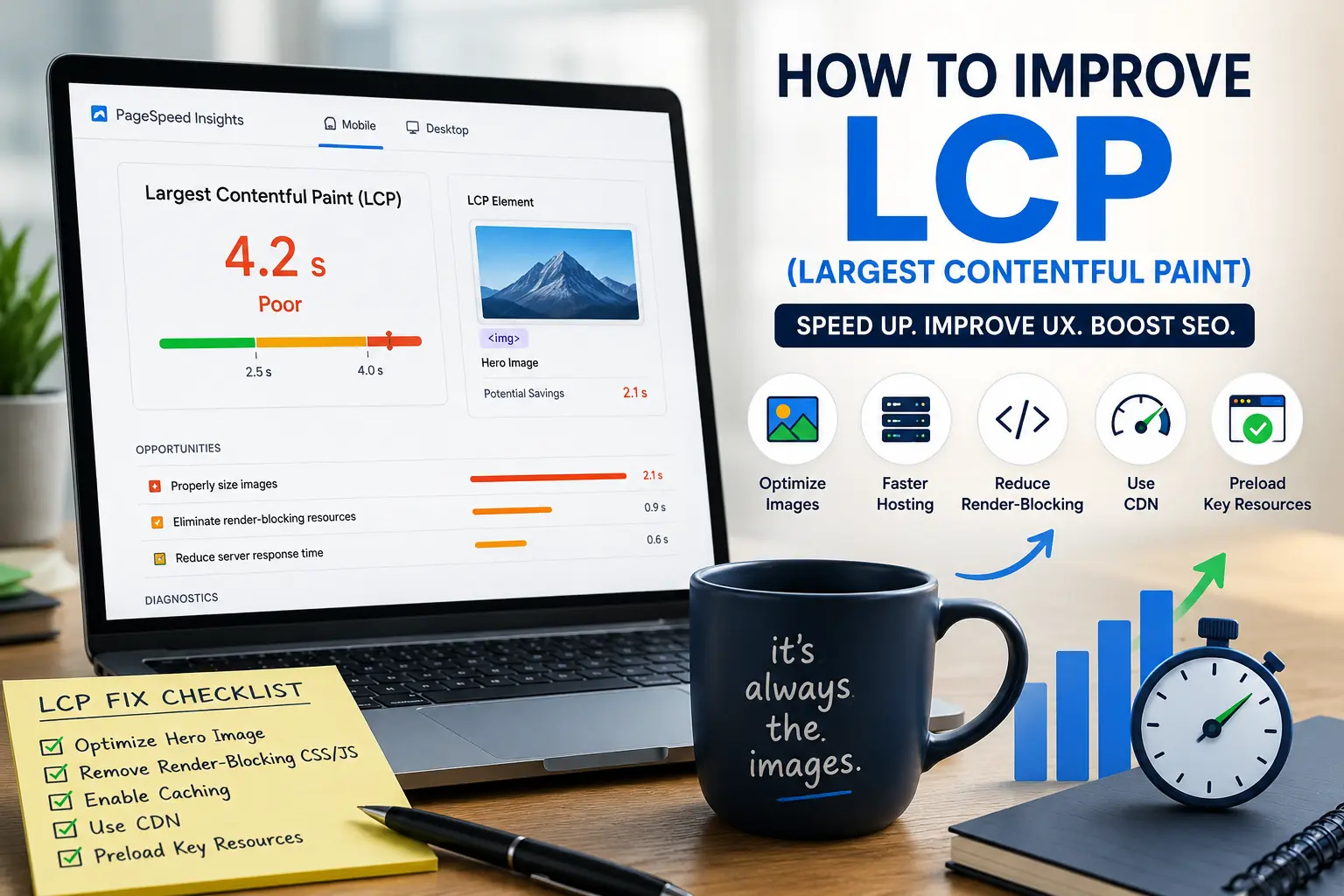
Lazy load images below the fold. Images that aren't visible when the page first loads don't need to download immediately. They can wait until the user scrolls near them. Use loading="lazy" on images that aren't in the initial viewport. Don't lazy load the hero image. That's your LCP element and it needs to load immediately. Lazy loading the hero image makes the page feel slower, not faster.
Our image SEO checklist covers image optimization in more detail.
Enable Caching
Caching is the closest thing to a free performance win. It takes setup time and then it just works forever.
Browser caching tells visitors' browsers to save images, CSS files, and JavaScript files locally. The first visit downloads everything. The second visit loads from the local cache. Nearly instant. Returning visitors get a dramatically faster experience.
Server caching stores pre-built versions of your pages. Instead of WordPress building the page from scratch for every visitor, it serves the cached version. Database queries. PHP processing. Template rendering. All skipped. The server just hands over a file.
If you're on WordPress, a caching plugin handles both types of caching. WP Rocket. Flying Press. W3 Total Cache. Pick one. Configure it. Don't use two caching plugins at the same time. They'll conflict and your site will behave unpredictably.
Most caching plugins have sensible defaults. Enable page caching. Enable browser caching. Enable GZIP compression. These three settings cover most of the benefit. The advanced settings are for edge cases you probably don't have.
Whenever you update CSS or JavaScript files, clear or version your cache so visitors receive the latest files. Stale caches can cause broken layouts or missing functionality.
After enabling caching, test your site. PageSpeed Insights should show improvements in server response time and repeat visit loading speed. If you're not seeing improvement, the caching might not be configured correctly. Or your server might be so slow that even the cached version takes too long to deliver.
Use a Content Delivery Network
A CDN puts copies of your site on servers around the world. When someone visits, they get the content from the nearest server. Not from your origin server halfway across the planet.
The speed difference is noticeable. A visitor in Australia loading your site from a server in Virginia might wait 2 seconds for the first byte. The same visitor loading from a CDN server in Sydney might wait 200 milliseconds. That's a tenfold improvement. You feel that.
CDNs also handle some of the load. Your origin server processes fewer requests. It stays faster for the requests it does handle. This helps with traffic spikes and reduces hosting costs. Your server can be smaller and cheaper because the CDN does most of the work.
Cloudflare has a free tier that works for most small sites. BunnyCDN is another affordable option. Most caching plugins integrate with CDNs. Set it up once. Let it run. You'll forget it's there.
Many CDNs now support HTTP/3, which can further reduce latency on modern browsers. HTTP/3 improves connection setup time and handles packet loss better than HTTP/2, especially on mobile networks.
CDNs also provide other performance features. Minification. Image optimization. HTTP/2 and HTTP/3 support. These are nice bonuses on top of the geographic distribution. You might find your CDN already handles some of the optimizations you were planning to do manually.
Optimize Web Fonts
Web fonts slow down your site in ways that aren't obvious. Each font family. Each font weight. Each font style. They're all separate downloads. They all block text rendering until they arrive.
The easiest fix is using fewer fonts. Do you really need three different font families? Probably not. One for headings and one for body text is usually enough. Every font you remove is less data to download.
Fewer font weights helps too. You probably don't need Thin, Light, Regular, Medium, SemiBold, Bold, ExtraBold, and Black. Regular and Bold cover most use cases. Some designs need a third weight. Nobody needs all eight.
Preload important fonts. Add a <link rel="preload" as="font"> tag in the page head for the fonts used in visible text. The browser downloads them early. Text appears faster. Include the crossorigin attribute or the preload won't work.
When possible, serve fonts as WOFF2 files. They're smaller and load faster than older formats.
Self-host fonts instead of loading from Google Fonts. The fonts load from your server or CDN. One less external connection. One less DNS lookup. The fonts download faster because they're coming from the same place as everything else.
Use font-display: optional to prevent invisible text while fonts load. The browser uses a fallback font immediately. If the web font loads quickly, it swaps in. If it takes too long, the fallback stays. No blank text. No flash of invisible content.
Reduce Third-Party Scripts
Third-party scripts are performance killers. Analytics. Chat widgets. Social media buttons. Marketing pixels. Every one of them downloads JavaScript and executes it on your page.
The problem isn't that any single script is huge. It's that they add up. A site with five analytics tools, three chat widgets, two social media plugins, and a marketing pixel is loading scripts from a dozen different sources. Each one takes time. Each one can block the main thread.
Audit your scripts. Look at your page source. Check your tag manager. List every third-party script loading on your site. Ask yourself what each one actually does and whether you need it. Be honest. You probably don't need five analytics tools.
Remove the ones you don't need. That Facebook widget showing share counts that are always zero. The analytics tool you installed on someone's recommendation three years ago and never checked. The chat widget that nobody ever messages. Every script you remove is less JavaScript to download and execute. The main thread is freer.
For the scripts you keep, load them efficiently. Use async or defer attributes. Load non-essential scripts after the main content. Delay them until user interaction when possible. The chat widget doesn't need to load before the user has even read anything.
Consider whether a script is worth the performance cost. A chat widget that converts visitors into customers might be worth the slowdown. A social media counter that nobody looks at probably isn't. Make the tradeoff consciously.
Upgrade Your Hosting
Your hosting is the foundation. If it's slow, everything built on top of it will be slow. Compressed images won't help. Caching won't help. A CDN helps a little but can't fix a server that takes two seconds to respond.
Time to First Byte measures how long your server takes to start responding. A good TTFB is under 200 milliseconds. On cheap shared hosting, TTFB is often above 800 milliseconds. Sometimes above 2 seconds. That's time when nothing is happening. No content is loading. No images are downloading. The browser is just waiting.
Cheap shared hosting is the worst offender. For a few dollars a month, you share a server with hundreds of other sites. If another site on your server gets a traffic spike, your site slows down. You have no control.
Managed WordPress hosting like WP Engine, Kinsta, or Flywheel costs more but is worth it. Servers are configured specifically for WordPress. Caching is built in. Response times are consistently fast.
VPS hosting gives you dedicated resources with more control and more responsibility. Cloud hosting scales with your traffic but is overkill for most small sites.
If your PageSpeed Insights shows a high TTFB and you've already enabled caching and a CDN, your hosting is the bottleneck. Upgrade it. The cost is usually less than the revenue lost to slow load times.
Minify CSS, JavaScript, and HTML
Minification removes unnecessary characters from your code. Spaces. Comments. Line breaks. Everything the browser doesn't need to parse the code.
The file sizes get smaller. Less data to download. Faster page loads. The improvement isn't massive. But it's easy. Most caching plugins and CDNs do it automatically. You might already have it without knowing.
CSS minification removes whitespace and comments from stylesheets. A 50KB CSS file might become 35KB. Not a huge difference. But combined with other optimizations, it adds up. Every kilobyte helps. Unused CSS can also delay rendering, so remove styles that are no longer needed whenever possible.
JavaScript minification does the same for scripts. Variable names get shortened. Whitespace disappears. The code becomes unreadable to humans but functionally identical to browsers. Don't try to debug minified JavaScript. It's not meant for humans.
HTML minification removes whitespace between tags. It makes your page source look like one long line. Users don't see the source. They just see the page load slightly faster.
If you're using a caching plugin, enable minification in the settings. Test after enabling. Rarely, minification breaks JavaScript that wasn't written correctly. If something stops working, disable minification for that specific file. Don't abandon minification entirely because one script had a problem.
Use Lazy Loading
Lazy loading delays the loading of non-critical resources until they're needed. Images below the fold. Videos. Embeds. If the user doesn't scroll to them, they never load at all.
Images are the most common use case. Add loading="lazy" to image tags. The browser only downloads the image when it's about to enter the viewport. The initial page load is faster because fewer resources compete for bandwidth. The user might not even scroll to half your images.
Videos are even more important to lazy load. A video embed can be several megabytes. Lazy loading prevents that from blocking the initial page render. Replace the video embed with a placeholder image. Load the actual video when the user clicks or scrolls near it.
JavaScript can be lazy loaded too. If a script isn't needed for the initial page render, defer it. Use async or defer attributes. Load it after the main content is visible. The user sees the page. The script loads later.
The key exception is the LCP image. The hero image at the top of the page. It should not be lazy loaded. It's the most important visual element. It needs to load immediately. Lazy loading the LCP image makes LCP worse. Every lazy loading plugin should let you exclude specific images.
Our how to improve LCP guide covers LCP optimization in detail.
Reduce Redirects
Redirects add time. Every redirect means the browser has to make another request. Wait for another response. Then request the final destination. One redirect might add a few hundred milliseconds. Several redirects in a chain add up fast.
A redirect chain is worse. Page A redirects to Page B. Page B redirects to Page C. Page C is the final page. The browser makes three requests just to get to the right URL. The user waits through all of them.
Fix internal links to point directly to the final URL. If you moved a page and set up a redirect, update the links on your site to point to the new location. Don't make visitors and bots follow redirects you could have avoided.
Fix redirect chains. If Page A redirects to Page B and Page B redirects to Page C, change Page A to redirect directly to Page C. One redirect instead of two. Half the wait time.
Use server-level redirects instead of JavaScript redirects or meta refresh redirects. Server-level redirects are faster. The browser doesn't have to load a page before being redirected. The server says "go here instead" and the browser goes.
Our broken link checker finds broken links and redirect chains on your site.
How to Prioritize Page Speed Fixes
You can't fix everything at once. Start with what matters most.
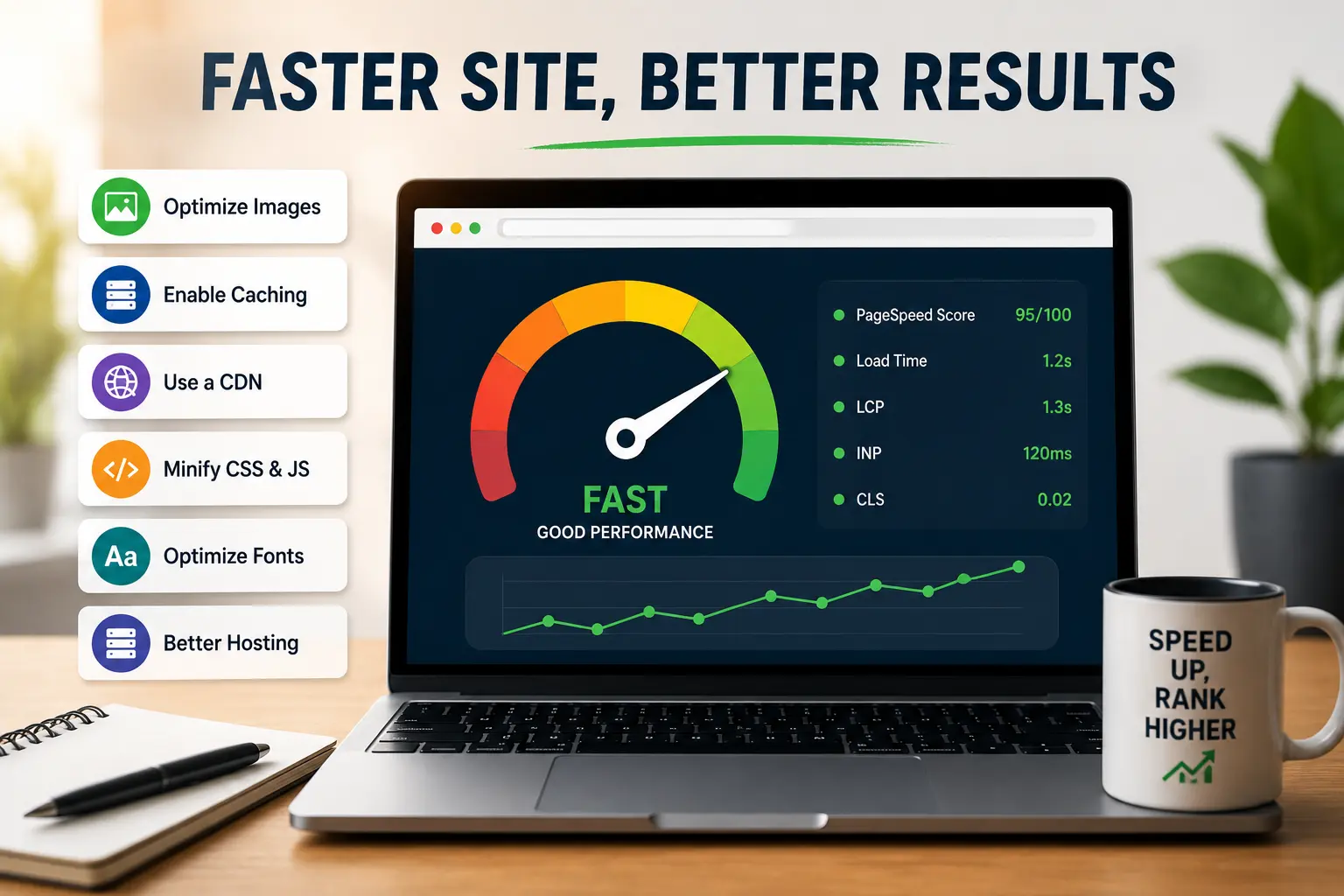
First, fix your images. They're usually the biggest bottleneck. Resize. Compress. Convert to modern formats like WebP or AVIF. These changes alone can dramatically improve page speed. I've seen sites go from 8-second load times to 3 seconds just by optimizing images. No other changes.
Second, enable caching and a CDN. These are infrastructure improvements. They help every page on your site. They're relatively easy to set up. They keep working forever with minimal maintenance.
Third, optimize your fonts. Reduce the number of families and weights. Preload important fonts. Self-host if possible. Fonts are the hidden performance cost that most guides ignore.
Fourth, reduce third-party scripts. Audit what you have. Remove what you don't need. Defer what remains. Every script you remove is JavaScript that never runs.
Fifth, upgrade hosting if server response time is still slow. This costs money. It's worth it if your site is losing visitors to slow load times. Do the math on how much a faster site would improve conversions. The hosting upgrade usually pays for itself within months.
Sixth, minify and optimize your code. This is fine-tuning. The improvements are smaller. Do it after the bigger fixes are in place. The big fixes might make minification unnecessary.
Test after each change. Don't make five changes at once and then wonder which one helped. Fix one thing. Test. See the improvement. Move to the next thing. Methodical optimization beats random changes.
Our core web vitals checklist covers the full optimization process.
Measure Before and After
You can't improve what you don't measure. Before making any changes, run your page through PageSpeed Insights and save the results. Take a screenshot. Note your scores. Write down your Core Web Vitals values.
Apply one optimization at a time. Test after each change. Compare the new results to the baseline. Did LCP improve? Did the overall score go up? Did anything get worse?
This approach does two things. It tells you which fixes actually made a difference. And it prevents you from accidentally undoing improvements with later changes. Without a baseline, you're guessing. With one, you know.
Always test on mobile because many visitors browse over slower cellular connections where every kilobyte matters. Desktop scores can look great while mobile users are still waiting.
Common Page Speed Mistakes
I've made most of these. Learn from my errors.
Chasing a perfect PageSpeed score. A score of 100 is not the goal. A fast user experience is the goal. I've seen sites with a score of 100 that loaded terribly because everything was deferred until after the test completed. I've seen sites with a score of 40 that felt fast. The score is a proxy. Not the thing itself.
Fixing things in the wrong order. You spend hours minifying CSS while your images are still 5MB each. Fix the big problems first. The small ones might not matter after the big ones are solved.
Installing too many optimization plugins. One caching plugin is good. Two caching plugins conflict. An image optimization plugin plus a lazy loading plugin plus a minification plugin plus a CDN plugin. They overlap. They conflict. Keep it simple. One good caching plugin handles most of this.
Removing functionality that matters. A chat widget might slow your site by 200 milliseconds. It might also convert 5 percent of visitors into customers. Some performance tradeoffs are worth making. Measure the impact before removing things.
Optimizing the wrong pages. Your homepage gets the most traffic. Your blog posts might get more. Fix the pages that matter first. Not the obscure tag page that gets three visits a month.
Testing only once. Run PageSpeed Insights a few times. Scores vary between tests. Look at the average. Look at the trend over time. One test is a data point. Multiple tests are a pattern.
Page speed optimization is a game of diminishing returns. The first few fixes make a huge difference. Resizing images. Enabling caching. Setting up a CDN. These can cut your load time in half. The difference between an 8-second site and a 3-second site is life-changing.
After that, the improvements get smaller. Minifying CSS. Reducing redirects. Optimizing fonts. These are worth doing if you have time. They're not worth obsessing over if you don't. A site that loads in 2 seconds doesn't need to load in 1.8 seconds. Nobody will notice.
Focus on the fixes that actually make your pages feel faster. Not the ones that improve a score by half a point. If you're still serving large JPEG or PNG images, switching to WebP or AVIF is often the fastest performance win. If your pages load in under 2 seconds and your Core Web Vitals are green, stop optimizing. There are better uses of your time. Write something. Build something. Do anything else.
If your pages take 8 seconds to load, fix that today. Your visitors are leaving. They're just not telling you. They're closing the tab and clicking the next result. Speed matters. Not because Google says so. Because your visitors have attention spans measured in seconds and patience measured in milliseconds.
Start with images. Then caching. Then a CDN. Then fonts and scripts. Test after each change. Don't chase perfection. Chase fast enough. Fast enough is usually faster than you think. And once you're there, go work on something that moves the needle more. The performance rabbit hole is deep. You don't have to reach the bottom.