LCP is usually the hardest Core Web Vital to fix. CLS can be solved by setting image dimensions. INP can be improved by cleaning up JavaScript. But LCP involves your server, your images, your code, and sometimes your hosting bill. It touches everything.
I've spent too many afternoons staring at PageSpeed Insights, trying to figure out why a page that looks fast to me is getting a Poor LCP score. The fix is rarely one thing. It's usually a combination of small changes that add up. You resize an image. You enable caching. You remove a script. Each one shaves off a few hundred milliseconds. Together they take you from red to green.
The good news is that most LCP problems come from the same few causes. Once you've seen them a few times, you can diagnose and fix them quickly. Let me walk through what actually works.
What Is Largest Contentful Paint
Largest Contentful Paint measures how long it takes for the main content on your page to appear.
Google looks at the largest visible element in the viewport. Usually a hero image. Sometimes a large heading or text block. Sometimes a video thumbnail. The timer starts when the page begins loading and stops when that element renders. It's the moment the page stops being blank and starts being useful.
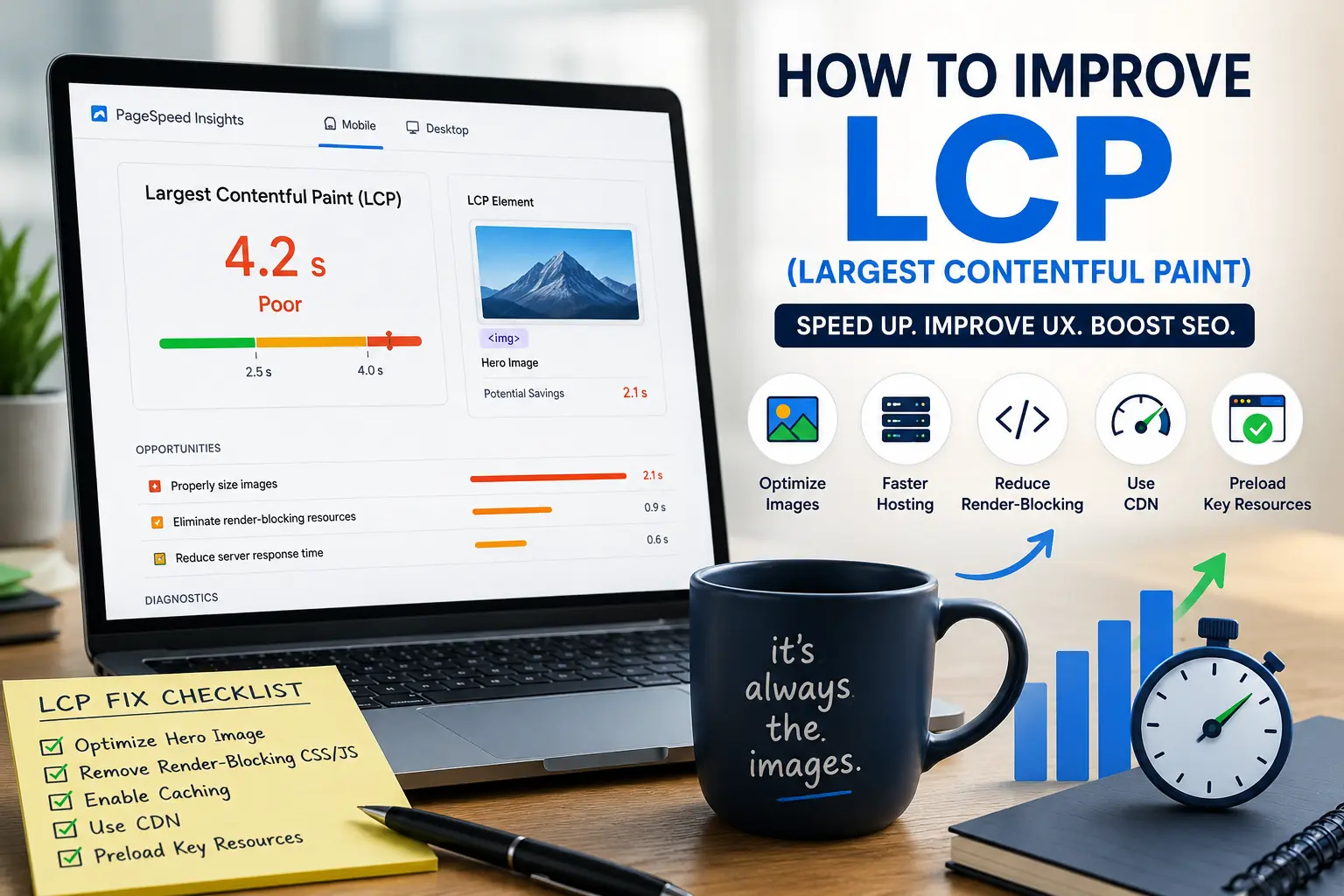
A good LCP score is 2.5 seconds or less. Between 2.5 and 4.0 seconds needs improvement. Above 4.0 seconds is poor. These thresholds are based on real user behavior data. People start leaving when pages take longer than a few seconds to show something useful. Not when the page finishes loading. When the main thing appears.
LCP is the loading metric. It's not about when every image and script finishes. It's about when the page feels like it's loaded. When the most important thing on the screen appears. Everything after that is secondary.
Our Core Web Vitals guide covers how LCP fits alongside INP and CLS if you want the full picture.
How to Diagnose What's Hurting Your LCP
Before you start fixing things, figure out what's actually causing the problem. I've watched people optimize their JavaScript bundles for hours while the real issue was an 8MB hero image. Don't guess. Check.
Open PageSpeed Insights. Paste your URL. Run the test. Look at the LCP section. It tells you what the LCP element is. Usually an image. Sometimes a text block. Knowing which element is the LCP element tells you what to focus on. If it's an image, optimize images. If it's text, the problem is probably server response time or render-blocking CSS.
Scroll down to the Opportunities section. It lists specific recommendations with estimated time savings. "Properly size images." "Eliminate render-blocking resources." "Reduce server response time." These aren't generic suggestions. They're based on what Google found on your specific page. The estimated savings aren't always accurate, but they tell you where to start.
Look at the Diagnostics section for more detail. "Largest Contentful Paint element." "Avoid large layout shifts." "Reduce JavaScript execution time." These give you more context about why your LCP is slow. Sometimes the problem isn't what you think.
Check your hosting setup. Is your server responding quickly? The Time to First Byte metric in PageSpeed Insights tells you how long your server takes to start sending data. If it's above 800 milliseconds, your hosting is part of the problem. You can optimize images all day and still have bad LCP if your server is slow.
Also check Search Console. The Core Web Vitals report shows which pages have LCP issues across your site. Fix the pages that get traffic first. Your homepage. Your best blog posts. Your top product pages. Fixing pages nobody visits is a waste of time. I've seen people spend days optimizing obscure tag pages while their homepage was sitting in the red.
Our free SEO checker identifies LCP issues alongside other technical problems.
Optimize Your LCP Image
For most websites, the LCP element is an image. Usually a hero image at the top of the page. Sometimes a product photo. Sometimes a featured image in a blog post. Fixing this one image can dramatically improve your LCP score. I've seen sites go from Poor to Good just by resizing their hero image.
The biggest problem is image size. Someone uploads a photo straight from their camera. It's 5MB and 4000 pixels wide. The browser has to download 5MB of data just to show a 1200-pixel-wide image. Resize the image to the actual display size. If your hero section is 1200 pixels wide, the image should be 1200 pixels wide. Not 4000. Not from a stock photo site at full resolution.
Compress the image. JPEG and PNG files usually have extra data you can strip out without visible quality loss. Our image compressor handles this automatically. You'll often see 60 to 80 percent file size reduction with no perceptible quality difference. If the image looks pixelated after compression, you went too far. Back off a bit.
Use a modern image format. WebP files are significantly smaller than JPEG or PNG at the same quality level. AVIF is even smaller. Our PNG to WebP converter converts images to WebP format. Most modern browsers support WebP. For the few that don't, you can provide a JPEG fallback with a <picture> element.
Preload the LCP image. Add a <link rel="preload"> tag in your page head that tells the browser to start downloading the LCP image immediately. Don't wait for the CSS to load. Don't wait for JavaScript to execute. Start fetching the most important image right away. A preload tag looks like this: <link rel="preload" as="image" href="hero.webp">. Put it early in the head.
Remove the LCP image from lazy loading. Lazy loading is great for images further down the page. It's terrible for the hero image. If your LCP image has loading="lazy" on it, the browser delays downloading it. Remove that attribute. The LCP image should load eagerly. If your lazy loading plugin applies lazy loading to every image, exclude the hero image from it.
Our image SEO checklist covers image optimization in more detail.
Background Images and LCP
This is a surprisingly common problem I keep running into.
A lot of sites use CSS background images for their hero section instead of regular <img> tags. Something like background-image: url(hero.webp) in a stylesheet. It looks the same visually. But browsers handle it very differently.
Browsers discover <img> tags early in the page loading process. The browser sees the tag. It knows the image is important. It starts downloading immediately.
Browsers discover CSS background images much later. The browser has to download the HTML. Parse it. Download the CSS file. Parse that too. Build the render tree. Then it realizes there's a background image it needs. By the time it starts downloading, valuable milliseconds have passed.
If your LCP element is a background image, you have a few options. Switch to an <img> tag if possible. This is the cleanest fix. The browser discovers it immediately and starts downloading sooner.
If you can't switch to an <img> tag, preload the background image. Add a <link rel="preload" as="image" href="hero.webp"> tag in the head. The browser downloads the image early even though it's applied via CSS. Combine this with fetchpriority="high" for extra priority.
I've seen this issue a lot with page builders like Elementor and Divi. They love using background images for hero sections. The page looks great. The LCP is terrible. Switching to a foreground image or adding a preload tag often fixes it.
Reduce Render-Blocking Resources
Render-blocking resources are files that stop the browser from showing anything until they're downloaded and processed. Usually CSS and JavaScript loaded in the page head. The browser sees a <link> to a stylesheet. It stops rendering. Downloads the CSS. Parses it. Then continues. Every one of these stops adds time to LCP.
Inline critical CSS. The CSS needed to render the visible portion of the page should be included directly in the HTML head. Not in an external file. Not loaded from a CDN. In the HTML itself. This eliminates a network request and lets the browser render immediately. Tools like Critical CSS generator can extract the critical styles automatically.
Defer non-critical CSS. The rest of your stylesheets can load after the page renders. Use the media attribute or load them with JavaScript after the page is visible. The user sees content first. The full styling loads a moment later. They probably don't notice the delay.
Defer or async JavaScript. Scripts in the page head block rendering. Add defer or async attributes to script tags. Defer means "download in the background and execute after the page loads." Async means "download in the background and execute whenever." Both prevent JavaScript from blocking the initial render. Defer is usually safer because it preserves execution order.
Audit third-party scripts. Analytics. Chat widgets. Social media buttons. Marketing pixels. Each one adds download time and processing time. Remove the ones that aren't providing real value. You probably don't need five analytics tools and three chat widgets. I've never seen a site that needed all the scripts it was loading.
Improve Server Response Time
Your server is the starting point. If it takes two seconds just to start sending data, your LCP will never be good no matter how much you optimize everything else.
Time to First Byte measures how long the server takes to respond. A good TTFB is under 800 milliseconds. A great TTFB is under 200 milliseconds. PageSpeed Insights shows your TTFB. Check it. If it's high, your server is the bottleneck and you need to fix that before anything else will help.
Upgrade your hosting. Cheap shared hosting packs hundreds of sites onto one server. Resources are shared. Response times are slow. Managed WordPress hosting. VPS hosting. Cloud hosting. These cost more but respond faster. The hosting cost is usually less than the revenue lost to slow page loads. People don't wait for slow sites.
Use a CDN. A content delivery network stores copies of your site on servers around the world. When someone visits, they get the content from the nearest server. Not from your origin server halfway across the planet. CDNs also handle caching, which reduces the work your origin server has to do. Cloudflare has a free tier. Start there.
Enable caching. Page caching stores pre-built versions of your pages. Instead of building the page from scratch for every visitor, the server sends the cached version. This reduces server processing time dramatically. Object caching stores database query results. Browser caching tells visitors' browsers to save images and other static files locally. All three types of caching help.
Reduce server-side processing. Every database query adds time. Every PHP function adds time. Every API call adds time. If your page is making 50 database queries to load, it's going to be slow no matter what. Optimize your queries. Use a caching plugin. Reduce the work your server does per request.
Preload Important Resources
Preloading tells the browser to fetch important resources early. Before they're needed. Before the page renders. It's like telling the browser "you're going to need this file soon, start downloading it now."
The LCP image should be preloaded. Add a link tag in the page head. The browser starts downloading the image immediately instead of waiting to discover it in the HTML or CSS. This alone can save hundreds of milliseconds.
Important fonts should be preloaded. Web fonts block text rendering. If your main font is loaded from Google Fonts or a custom font service, preload it. The browser downloads the font early and text appears sooner. Include the crossorigin attribute for font preloads.
Key CSS and JavaScript files can be preloaded. If there are specific files that impact the visible content, tell the browser to prioritize them. Don't preload everything. That defeats the purpose. The browser can only download so many things at once. Preload the LCP image. Preload critical fonts. Leave everything else alone.
Preload hints are simple. A link tag in the document head. The browser sees it. Starts fetching. The resource is ready when the page needs it instead of being discovered late.
Our core web vitals checklist covers preloading alongside other optimization techniques.
Fix LCP on WordPress Sites
WordPress has specific LCP challenges. I've fixed enough of them to know the patterns.
Install a caching plugin. This is the single most impactful thing you can do for WordPress LCP. WP Rocket. Flying Press. W3 Total Cache. Pick one. Configure it. A good caching plugin handles page caching, browser caching, and file optimization with minimal setup. Don't install two caching plugins. They'll conflict and probably make things worse.
Use an image optimization plugin. ShortPixel. Smush. Imagify. These compress images on upload and can serve WebP versions. Set it up once. Every new image gets optimized automatically. You stop having to think about image optimization entirely.
Limit your plugins. Every active plugin potentially adds CSS, JavaScript, and database queries. Audit your installed plugins. Deactivate and delete the ones you don't need. Find lightweight alternatives for resource-heavy plugins. You probably have plugins installed that you haven't used in months. WordPress sites accumulate plugins like kitchen drawers accumulate old batteries.
Choose a fast theme. Some WordPress themes are performance nightmares. Page builders that generate bloated code. Themes that load dozens of JavaScript files. Themes with sliders and animations and parallax effects. A simpler theme usually loads faster. Test your theme's performance before committing to it.
Use a CDN. Cloudflare has a free tier that works well with WordPress. BunnyCDN is another good option. Most caching plugins integrate with CDNs. Set it up once. Let it run. You'll forget it's there.
Optimize your homepage separately. The homepage often has different content than interior pages. More images. More dynamic content. Test your homepage LCP specifically. Fix whatever is slowest there. The homepage is usually the most visited page and the one with the most performance challenges.
Our WordPress SEO checklist covers performance optimization in more detail.
Common LCP Optimization Mistakes
I've made several of these myself. You'll probably make a few too.
Over-optimizing images at the cost of visual quality. A blurry hero image is worse for user experience than a slightly slower LCP. Find the balance. Compress enough to improve performance but not so much that the image looks bad. If you can see compression artifacts, you went too far.
Lazy loading the LCP image. Lazy loading is for images below the fold. The images you have to scroll to see. The hero image at the top of the page should load immediately. If your lazy loading plugin is applying lazy loading to every image on the page, exclude the LCP image. It's one setting. It makes a real difference.
Preloading everything. Preload is for important resources. If you preload 20 files, none of them get priority. The browser can only download so many things at once. Preload the LCP image. Preload critical fonts. Leave everything else alone. Preloading too many files actually makes performance worse because they compete for bandwidth with the resources that actually need to load first.
Fixing the wrong page. You spend hours optimizing a blog post that gets 50 visits a month. Meanwhile your homepage with 10,000 visits still has a 6-second LCP. Fix the pages that get traffic first. Check Search Console to see which pages have LCP issues and which ones actually matter.
Ignoring mobile. PageSpeed Insights shows separate scores for desktop and mobile. Mobile is usually worse. Slower connections. Less powerful devices. More constraints. Optimize for mobile first. Desktop will usually improve along with it. If mobile LCP is good, desktop LCP is almost always good too.
Expecting instant results in field data. Lab data improves immediately when you make changes. Field data takes up to 28 days to fully reflect improvements because it's a rolling average of real user experiences. Don't panic if Search Console still shows yellow after you've fixed everything. Give it time. The old data has to age out.
How to Prioritize LCP Fixes
You can't fix everything at once. Here's what usually helps most.
First, fix the LCP image. This is the biggest win for most sites. Resize it. Compress it. Convert to WebP. Preload it. Remove lazy loading. You might see a second or more improvement just from this. I've seen sites go from Poor to Good by fixing nothing but the hero image.
Second, enable caching and a CDN. These are relatively easy to set up and improve server response time across your entire site. Not just one page. Every page benefits. These are infrastructure improvements that pay off forever.
Third, eliminate render-blocking resources. This is more technical. You might need a developer. But the impact on LCP can be significant. Inline critical CSS. Defer non-critical CSS and JavaScript. Audit third-party scripts.
Fourth, upgrade hosting if your server response time is still high after caching and CDN. This costs money. It's worth it if your site is losing visitors to slow load times. Do the math on how much revenue a faster site would generate. The hosting upgrade usually pays for itself.
Test after each change. Don't make five changes at once and then wonder which one helped. Fix one thing. Test. See the improvement. Move to the next thing. Methodical fixes beat random optimization. You learn what actually makes a difference on your specific site.
Improving LCP isn't about one magic fix. It's about several small changes that add up.
Start with your images. The LCP image is almost always the biggest bottleneck. Resize it. Compress it. Serve it in a modern format. Preload it. Don't lazy load it. If it's a CSS background image, switch to an <img> tag or preload it aggressively. These changes alone fix most LCP problems on content sites.
Then look at your server. Caching. CDN. Hosting. Faster server response means faster LCP. These changes improve your entire site, not just one page. They're worth doing even if LCP isn't your main concern.
Then tackle render-blocking resources. This is more technical. Inline critical CSS. Defer non-essential JavaScript. The impact is real but the implementation is harder. Get help if you need it.
Fix one thing at a time. Test after each change. Don't expect instant results in Search Console. Lab data responds immediately. Field data takes time. Check back in a month.
And if your LCP is already under 2.5 seconds on both desktop and mobile, stop optimizing. You're in the green. There are other things to work on. I promise. Go look at your CLS or INP instead. Or better yet, go write something useful. The page speed rabbit hole is deep and the returns diminish fast after you hit green. I've spent days chasing tenths of a second that didn't matter to anyone but me. Don't be me.