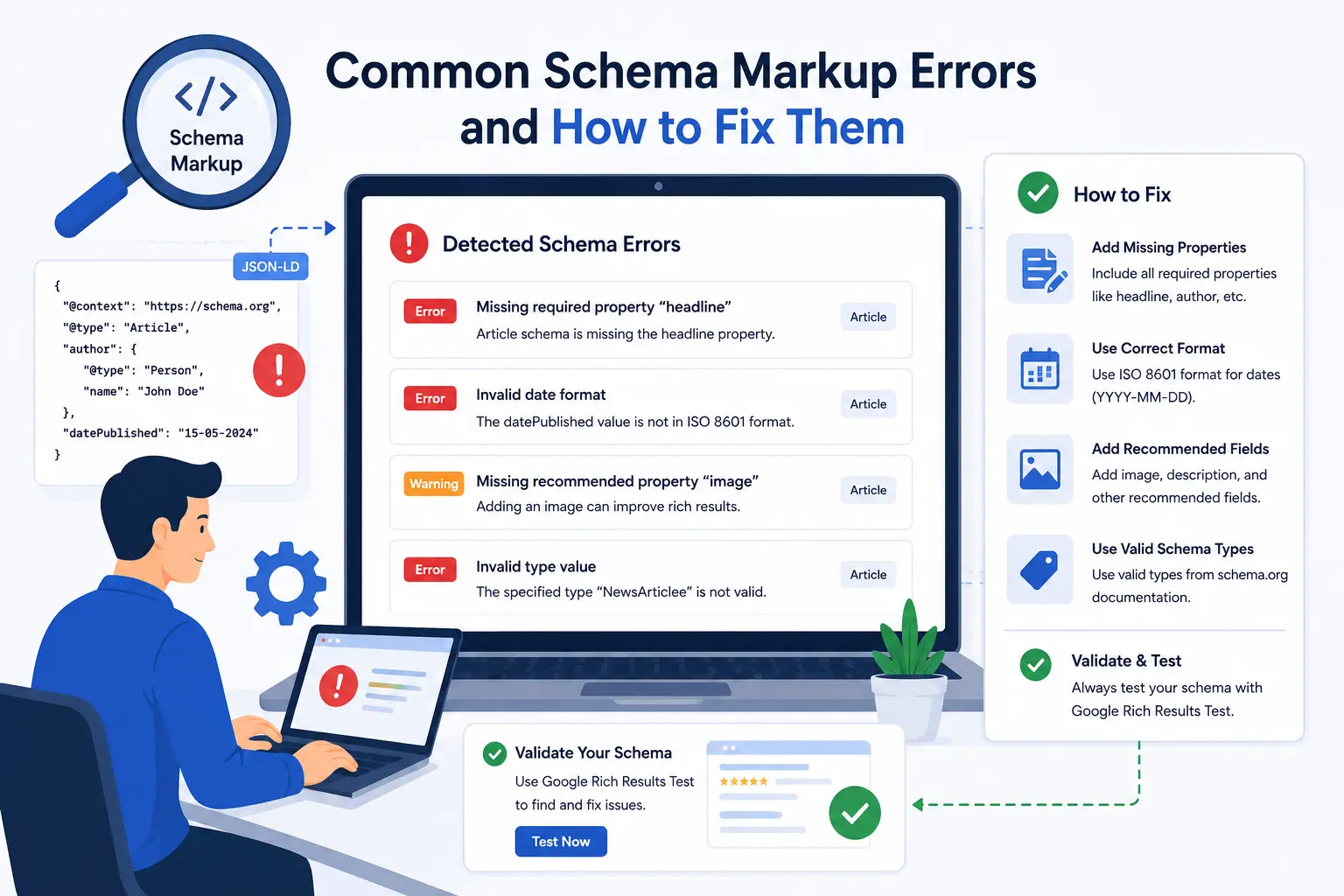
Schema markup is one of those things that usually works fine until it doesn't. And when it breaks, it breaks silently. Your page still loads. Your content still looks fine. You just stop getting rich results and have no idea why.
I've spent more time debugging schema errors than I'd like to admit. The validation tool says "invalid." Search Console shows warnings. The markup looked fine when you added it. What happened?
Most schema errors aren't unique. They're repeats of the same handful of problems. Once you've seen them a few times, they're easy to spot and easy to fix. If you're still in the setup phase rather than debugging, our how to add schema markup guide covers the implementation side before things break.
Common Schema Errors at a Glance
| Error | Severity | Fix |
| Missing required field | 🔴 High | Add required property |
| Invalid JSON syntax | 🔴 High | Fix syntax (brackets, commas, quotes) |
| Duplicate schema | 🟠 Medium | Keep one implementation |
| Wrong schema type | 🔴 High | Use the correct type |
| Incorrect value format | 🟠 Medium | Follow Schema.org format |
| Content mismatch | 🔴 High | Match schema to page content |
| Warning only | 🟡 Low | Fix if practical |
What Are Schema Markup Errors?
Schema markup errors are problems in your structured data that prevent Google from processing it correctly.
An error usually means Google can't use that structured data for its supported search features until the issue is resolved. The rich result won't appear. The structured data is effectively invisible.
A warning means Google can process your schema but something is missing or suboptimal. Rich results might still appear. They might not. Warnings are less severe than errors but still worth fixing when they're easy.
Errors and warnings show up in two places. Google's Rich Results Test tool flags them when you test individual pages. Google Search Console reports supported structured data issues through its reporting interface. Depending on the schema type, reports and labels may change over time.
Some errors are syntax problems. Missing brackets. Extra commas. Invalid JSON. The markup is literally broken.
Some errors are content problems. The schema says the product costs 20. The schema includes review ratings for a page with no visible reviews. The markup and the content don't match.
Some errors are guideline violations. Using a schema type on content it doesn't apply to. Including properties that Google doesn't support for that type. Doing things the documentation explicitly says not to do.
If you're newer to structured data entirely, our what is schema markup guide covers the fundamentals before you start debugging.
Schema Error Troubleshooting Workflow
Here's the process I follow when schema breaks:
- Run the page through the rich results tester to catch validation errors.
- Check Search Console for site-wide schema issues.
- Identify whether it's a template problem (affects many pages) or a page-specific issue.
- Fix the root cause in the template or on the individual page.
- Validate again to confirm the fix worked.
- Request indexing in Google Search Console.
- Monitor Search Console over the following weeks.
How to Find Schema Errors on Your Site
Most debugging sessions eventually begin in Search Console.
Google Search Console under Enhancements shows all the schema types Google has detected on your site. Product. Article. FAQ. LocalBusiness. Each type gets its own report. Click into any report and you'll see a chart of valid pages, pages with warnings, and pages with errors.
Click the error count. Search Console shows you exactly which pages have errors and what the specific error is. Missing field. Invalid value. Parsing error. It tells you what's wrong and often links to documentation about how to fix it.
The Rich Results Test is for testing individual pages. Paste a URL or a code snippet. The tool shows detected schema types and any errors or warnings. Use this when you're adding new schema or fixing known issues. Our free rich results tester does the same thing if you want a second opinion or prefer a different interface.
The Schema.org validator is a third option. It checks against the full schema vocabulary, not just Google's supported rich result types. Useful for catching syntax errors the testing tool might miss.
If you have a large site, spot-check a sample of pages. Your most important pages plus a random selection of others. If those pass, your templates are probably fine. If they have errors, fix the templates and the fix applies everywhere.
Our free SEO checker scans for schema issues alongside other technical problems if you want a broader audit.
Schema Doesn't Match Visible Page Content
This is probably the most common schema error I see.
Your structured data says one thing. The visible page says another. Google considers this misleading. Even if the difference is small. Google has become increasingly strict about this over the years.
The product price in schema is 39.99. Error.
The availability status says InStock. The page has a "sold out" notice. Error.
The review count in schema says 200 reviews. The page shows 150. Error.
The FAQ schema includes questions not shown on the page. Although FAQ rich results are no longer widely shown in Google Search, FAQPage structured data can still be validated and should accurately reflect the visible page content.
The fix is usually simple. Make the schema match the page content. Update the price. Update the availability. Update the review count. Remove FAQ questions that aren't visible. The schema should reflect what users actually see.
This is also a maintenance problem. Schema doesn't update itself. If you change a product price on the page and forget to update the schema, you get this error. If a product sells out and you don't update the availability field, you get this error.
Automation helps. If your product schema pulls from your product database, price and availability updates flow through automatically. If you're manually coding schema, you need a process for keeping it current.
Missing Required Properties
Every schema type has required fields. Skip one and the schema is invalid.
Product schema requires a name and at least one of review, offers, or aggregateRating. Most people include offers with price and availability. Skip the price? Error. Skip the availability? Sometimes an error, sometimes a warning depending on the type.
Article schema requires a headline and one of author, datePublished, or image. Most implementations include all three. Skip the headline? Error. Skip the author? Warning if datePublished and image are present.
LocalBusiness schema requires a name and an address or image. Name alone isn't enough. Google needs to know where the business is.
FAQ schema requires questions with accepted answers. A Question type with no Answer nested inside is invalid.
The fix is checking which properties are required for your schema type. Google's documentation lists required fields for each rich result type. Schema.org lists required properties for the vocabulary. Make sure every required field has a valid value.
If you're using a generator, required fields are usually marked. Our free schema markup generator highlights which fields must be filled in for each schema type.
Invalid JSON-LD Syntax
JSON-LD looks simple. Brackets and colons and commas. But syntax errors are easy to make.
Missing closing bracket. The JSON block has three opening curly braces and only two closing ones. The entire block is invalid.
Extra trailing comma. The last property in an object has a comma after it. JSON doesn't allow trailing commas. One extra character breaks everything.
Missing comma between properties. Two properties on separate lines but no comma separating them. The parser can't tell where one ends and the next begins.
Unquoted property names. All property names in JSON must be in double quotes. Single quotes don't count. No quotes at all definitely doesn't count.
Invalid characters in values. Special characters inside strings that should be escaped. Ampersands. Quotation marks. Backslashes. If they're not escaped properly, the parser chokes.
The validation tool catches syntax errors. So does the Schema.org validator. Most code editors also highlight JSON syntax problems if you have JSON validation enabled. Our free rich results tester flags them too.
Annoying, but easy to fix. Add the missing bracket. Remove the trailing comma. Add the missing comma. Quote the property name. Escape the special character. Tiny changes that fix the entire block.
I've wasted an embarrassing amount of time hunting for a single missing comma. It happens. Test your code before deploying and you'll catch these before they go live.
Using the Wrong Schema Type
Schema types are specific for a reason. A blog post gets Article or BlogPosting. A product page gets Product. A local business gets LocalBusiness. A recipe gets Recipe.
Using Product schema on a blog post because you want star ratings is a mistake. Google checks whether the schema type matches the page content. If it doesn't, the schema is ignored.
Using Organization schema on a product page is a mistake. Organization describes the company. Product describes what's for sale. Different purposes.
Using FAQPage schema on a page with no FAQs is a mistake. Even with FAQ rich results deprecated, Google still discourages misleading schema.
The fix is matching the schema type to what the page actually contains. Be honest about what the page is. If the page is an article, use Article schema. If it sells a product, use Product schema. If it describes a local business, use LocalBusiness schema.
Our schema markup checklist maps out which types match which content formats.
Duplicate Schema Markup
This happens more than you'd think.
Your WordPress theme adds product schema to your product pages. Your SEO plugin also adds product schema. Your review plugin adds product schema for the aggregate rating. Now you have three Product schema blocks on the same page.
Google sees all three. They might have conflicting information. They might have different price values if the theme and plugin pull from different data sources. Google doesn't know which one to trust.
The fix is consolidating to one schema block per type per page. If your theme handles product schema, disable it in your SEO plugin. If your SEO plugin handles it, remove the theme's markup. Choose one source and stick with it.
Sometimes plugins let you disable their schema output. Yoast has schema settings where you can turn off specific types. RankMath has similar options. Check your plugin documentation.
If you can't disable duplicate schema, you might need to remove one source entirely. That's more drastic but sometimes necessary.
Incorrect Value Formats
Schema properties expect values in specific formats. Get the format wrong and the schema is invalid or ignored.
Dates should be in ISO 8601 format with timezone. Not "May 28, 2026." Not "28/05/2026." The correct format is "2026-05-28" for just the date or "2026-05-28T09:00:00+00:00" for date with time and timezone.
Prices should be numbers, not strings with currency symbols. Not "$29.99." Just "29.99" with the currency specified separately in priceCurrency.
Phone numbers should be in international format. Not "(312) 555-1234." The correct format is "+1-312-555-1234."
Availability status should use the Schema.org URL values. Not "in stock" or "available." The correct value is "https://schema.org/InStock" exactly.
URLs should be full absolute URLs. Not "/images/product.jpg." The correct format is "https://yoursite.com/images/product.jpg."
The testing tool catches format errors. It'll say "invalid value" and often show you what format it expects. Follow the format exactly.
Schema Warnings vs Errors
Not all issues are equal.
Errors mean Google can't use the schema at all. The rich result won't appear. Fix errors first. Always.
Warnings mean Google can process the schema but something is missing or suboptimal. The rich result might still appear. Or it might not. Warnings are lower priority.
Common warnings include missing optional properties that Google recommends but doesn't require. Missing image in article schema. Missing description in product schema. Missing opening hours in local business schema.
Some warnings are about deprecated properties. Google used to support a field. Now they don't. Your schema still includes it. It doesn't break anything but it's unnecessary.
Warnings sometimes indicate that the schema is valid but the rich result still won't appear because required context is missing. Fix these if they're easy. If fixing a warning requires restructuring your entire schema, weigh the effort against the benefit.
How to Validate Schema Markup Before Publishing
This step prevents most errors from ever reaching your live site.
Before deploying any new schema or updating existing markup, run it through at least one validation tool. The Rich Results Test is the obvious first choice. Paste your URL or code snippet and check for errors and warnings.
I also run markup through the free rich results tester as a second check. Different validators sometimes catch different things. It takes thirty seconds and has saved me from publishing broken schema more than once.
If you're writing raw JSON-LD, validate the JSON separately first. Any JSON linter will catch syntax errors. Fix those before you even think about schema-specific validation. No point testing schema rules if your brackets don't match.
After deploying, test the live URL. Don't assume the code you pasted is identical to what the server outputs. Plugins, themes, and CMS settings can modify your markup. Test the rendered page, not just the code you wrote.
Then check Search Console a few days later. Validation tools test a single page. Search Console shows you patterns across your site. If one page has an error, similar pages probably have the same error.
Schema Errors After Platform Updates
This is a frustrating one. Your schema was fine. Then you updated your theme. Or your plugins. Or your CMS. And now Search Console is full of errors.
Theme updates can change how schema is generated. A theme that hard-coded product schema might change its format in a new version. Fields get renamed. Properties get removed. Values change format.
Plugin updates can cause conflicts. Plugin A and Plugin B both output schema. They used to be compatible. A new version of Plugin B changes how it outputs schema. Now they conflict.
CMS updates sometimes change how data is stored or retrieved. Your product prices move to a different database field. Your schema still looks at the old field. Now all your prices are missing or wrong.
The fix depends on what changed. Check your theme and plugin changelogs for schema-related updates. If a theme update broke your schema, you might need to update your template files. If plugin updates caused conflicts, check plugin settings for new schema options.
If you can't fix it yourself, this is when reaching out to a developer makes sense. Schema problems caused by platform updates can get technical quickly.
Before Asking a Developer for Help
Run through this checklist first. It'll save you time and money.
- Is the JSON valid? Check for missing brackets or commas.
- Are all required fields present for your schema type?
- Does the schema content match what's on the visible page?
- Is there duplicate schema from multiple plugins or your theme?
- Does the rich results tester show validation errors?
- Have you checked Search Console for site-wide schema issues?
If you've checked all of these and the problem persists, you've at least narrowed it down. That makes the developer's job faster and cheaper.
How to Fix Schema Errors Efficiently
When Search Console shows errors across dozens or hundreds of pages, the fix is usually a template change, not a page-by-page edit.
If all product pages show the same "missing price" error, your product template has a schema problem. Fix the template. The fix applies everywhere.
If all blog posts show the same "missing author" warning, your blog template has a schema problem. Fix the template. All posts get the fix.
Don't edit individual pages unless the error is page-specific. A pricing error on one product page where you manually overrode the price. A missing author on one guest post. Those are one-off fixes. Everything else is a template issue.
After fixing the template, test a few pages with the Rich Results Test or the free rich results tester. Then request indexing in Search Console for the affected pages. Google recrawls and the errors clear.
Our how to fix crawl errors guide covers the re-indexing process if errors persist after fixes.
Common Schema Errors by Schema Type
Different schema types have different common errors.
Product schema errors are usually about price and availability. Missing price. Wrong price format. Price in schema doesn't match page. Availability status not updated when stock changes. Review ratings included without verified reviews on the page. Our product schema guide covers type-specific details.
Article schema errors are usually about missing properties or wrong formats. Missing headline. Missing author. Missing or broken image URL. Wrong date format. Using the wrong date for dateModified. The article schema guide walks through correct implementation.
Local business schema errors are usually about address formatting and consistency. Address doesn't match Google Business Profile. Missing address components like postal code or region. Wrong phone number format. Missing opening hours. See the local business schema guide for proper setup.
FAQ schema errors are mostly about content matching. Questions in schema not visible on page. Answers too short or vague. Using FAQ schema on pages without FAQ content. This is less relevant now that FAQ rich results are deprecated but the schema still exists.
Review schema errors often involve missing required properties like itemReviewed or reviewRating. Aggregated ratings without individual reviews visible on the page. Using review schema on pages that aren't actually review pages. The review schema guide covers these edge cases.
How to Prevent Schema Errors
Most errors are preventable with a few habits.
Test before deploying. Every new schema implementation. Every schema update. Run the Rich Results Test or the free rich results tester on at least one page before pushing changes live.
Test after platform updates. Theme update. Plugin update. CMS update. Spot-check your schema afterward. Catch errors before Search Console reports them weeks later.
Check Search Console monthly. The Enhancements section shows errors and warnings across your site. A monthly check catches problems before they've been sitting there for months.
Automate where possible. Schema that pulls from your database updates automatically when content changes. Schema that's hard-coded requires manual updates. Automation reduces the maintenance burden. If you're choosing between JSON-LD and Microdata, our JSON-LD vs Microdata comparison explains why JSON-LD is generally easier to automate.
Document your schema setup. Which plugins generate which schema types. Where the code lives. What customizations you've made. When something breaks six months later, you won't remember the details. Documentation helps.
Schema errors are annoying but predictable. Most fall into a few categories. Missing fields. Wrong formats. Mismatched content. Duplicate blocks. Broken JSON syntax.
After a while, the fix process starts looking familiar. Find the errors in Search Console or a validator. Identify whether it's a template issue or a page-specific issue. Fix the root cause. Test the fix. Request re-indexing. Move on.
What wastes time is fixing errors page by page when the real problem is in the template. What causes frustration is fixing the same error repeatedly because the root cause wasn't addressed.
Check your schema monthly. Test after updates. Fix errors before warnings. And if your JSON-LD has a missing comma, don't feel bad. I still do that too.