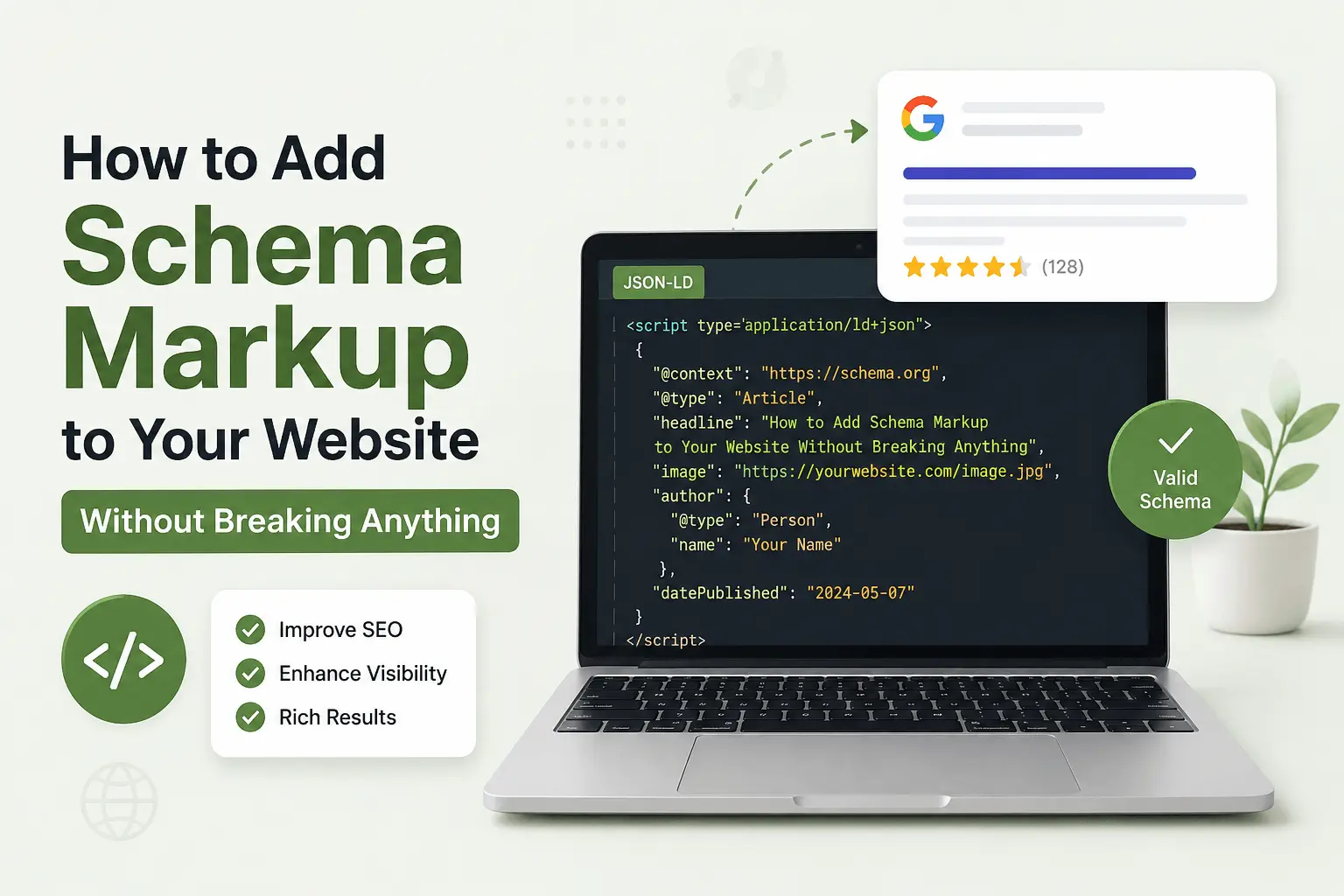
Adding schema markup sounds like one of those things you need a developer for. It's not. I mean sometimes it helps. But for most common use cases, you can do it yourself in about ten minutes.
The scary part isn't the implementation. It's the fear of breaking something. And I get that. Nobody wants to paste random code into their website and watch their rankings tank.
But schema markup is surprisingly forgiving. Worst case, you add it wrong and nothing happens. Google just ignores it. Best case, you get those nice rich results with star ratings and FAQ dropdowns that make your listing stand out.
Most people get stuck in the same few places. The implementation isn't usually the problem. The uncertainty is.
What You Need Before Adding Schema Markup
Before you touch any code, figure out what type of schema you actually need.
This sounds obvious. I've still watched people add Product schema to their blog posts and then wonder why nothing happened. The schema type has to match what the page actually contains. It's not a random SEO tag you sprinkle everywhere.
A blog post needs Article schema. A product page needs Product schema. A local business page needs Local Business schema. A page with FAQs needs FAQ schema. If you're not sure which type applies, our schema markup checklist maps it out by page type.
If you're new to structured data entirely, start with our What Is Schema Markup? guide before implementing it. It covers the fundamentals without the jargon.
You also need to decide which format to use. Google recommends JSON-LD. It's a block of JavaScript code that sits in the page header. Self-contained. Easy to add. Easy to remove. Doesn't touch your page content at all.
The other formats exist. Microdata and RDFa. But honestly, skip them. JSON-LD is the standard now and Google prefers it. Using anything else is just making extra work. Wondering why JSON-LD is preferred? Our JSON-LD vs Microdata comparison explains the differences and when each format makes sense.
If the terms "JSON-LD" and "schema type" already make you want to close this tab, I covered the basics in our what is schema markup guide. Might help to read that first. Or don't. You can probably figure it out as we go.
How to Add Schema Markup Using a Generator
This is the easiest method. No coding required.
A schema markup generator is a tool where you fill in your page details and it spits out the JSON-LD code. You copy that code, paste it into your page, and you're done.
Our free schema markup generator works like this. Pick your schema type. Fill in the fields. Article needs headline, author, publish date. Product needs name, price, availability. The tool builds the code for you.
After generating your code, validate it with our free rich results tester before adding it to your website. It catches syntax errors and missing properties that would prevent rich results from appearing.
Once you have the code, where do you put it? In the <head> section of your page. That's the part between the <head> and </head> tags in your HTML. If you're not comfortable editing HTML directly, most CMS platforms have a way to add header code.
In WordPress, you can use a plugin like Insert Headers and Footers. Paste the code into the header section. Save. Done.
In Shopify, go to Online Store > Themes > Edit code > theme.liquid. Paste before the closing </head> tag.
In Wix, go to Settings > Custom Code. Add the code to the header section.
Most platforms have a spot for header code. You just need to find it. Or Google your platform name plus "add code to header." Someone's written a guide for it.
WordPress users have an even easier option. Most SEO plugins handle schema automatically without touching any code at all.
Adding Schema in Modern Frameworks
If you're using a JavaScript framework, the implementation is slightly different but still straightforward.
In Next.js, use the next/script component or inject JSON-LD directly in the page head. Server components make this clean since the structured data is rendered before reaching the client.
In React, inject structured data with React Helmet or your preferred head management library. Place the JSON-LD inside the <Helmet> component so it ends up in the rendered <head>.
In Laravel, place the JSON-LD inside your Blade layout or page template. Use a dedicated section or stack for header scripts so the markup appears on every page consistently.
In Flask, add the JSON-LD script inside the <head> of your base template. The Jinja2 templating engine makes it easy to include dynamic values like page titles and publish dates.
For static HTML, paste the script inside the <head> before the closing </head> tag. No framework needed. Just raw HTML.
How to Add Schema Markup on WordPress
WordPress makes this simpler than most platforms.
If you're using an SEO plugin like Yoast or RankMath, you already have basic schema markup. These plugins automatically add Article schema to your blog posts and Breadcrumb schema to your site structure. You didn't do anything. It just happened.
But the automatic schema only covers the basics. If you need Product schema for an ecommerce page, or FAQ schema, or something more specific, you'll need to add it yourself.
Pick whichever creates the least work. Use a dedicated schema plugin. Schema Pro and Schema & Structured Data for WP let you configure different schema types on different pages through a settings panel. No code. Pick the type, fill in the fields, assign it to specific pages.
Use your SEO plugin's advanced features. Yoast Premium has a schema section where you can customize the default settings. RankMath has something similar.
Or use the generator method from the last section and paste the code into your header using the Insert Headers and Footers plugin.
All of these work. Pick whichever feels least annoying.
If you're using WooCommerce, some product schema might already be handled by your theme or plugins. Check before adding duplicate schema. Google doesn't like duplicates.
How to Add Schema Markup Manually
Sometimes you just want to write the code yourself. It's not that hard once you've seen the pattern.
JSON-LD always starts the same way. An opening script tag with the type attribute, then the schema context, then the type declaration, then whatever properties that type needs.
Here's what basic Article schema looks like:
That's the whole thing. The <script> wrapper tells browsers this isn't visible content. The @context points to Schema.org. The @type says what kind of thing this is. The rest is just properties. Headline. Author. Dates.
Product schema looks similar but with different properties:
The pattern is always the same. Type declaration. Properties. Close the brackets. The specific properties change based on the type, but the structure doesn't.
FAQ schema is slightly different because it uses an array of questions. But the outer wrapper is identical:
Add more question objects inside the array for each FAQ. Same structure. More entries.
The manual approach gives you full control. It also gives you full responsibility for not breaking the JSON syntax. Missing commas. Extra brackets. These things happen. That's why you test after adding. Every time.
How to Test Schema Markup Before Going Live
Never trust that your code is right. Always test.
Before using Google's tool, run your code through our free rich results tester to detect structured data issues. It tells you what schema types were detected, whether they're valid, and whether there are any errors or warnings.
Errors mean the rich result won't show. Fix those first. Warnings mean something might not work optimally. Fix those if you can, but they usually won't block rich results from appearing.
If you're testing before publishing, paste the code directly into the tool. If the page is already live, paste the URL. Both work.
After the page is live, check Google Search Console. Go to the Enhancements section. It shows all schema types Google has found across your site, how many pages have each type, and whether there are errors.
Sometimes the Rich Results Test says everything is fine, but Search Console shows errors. That usually means Google found the schema but something about it doesn't match their specific rich result requirements. The error details in Search Console will tell you what to fix.
I check Search Console maybe a week after adding new schema. That gives Google enough time to recrawl the page and process the markup.
If you want to speed things up, use the URL Inspection tool in Search Console. Paste the URL. Click "Request Indexing." Google recrawls it sooner. Not instantly. But sooner. If your website supports IndexNow, submit the updated URL after adding schema to notify participating search engines about the change.
Common Schema Markup Mistakes to Avoid
If Google still reports problems after implementation, see our complete guide to common schema errors and how to fix them.
I've made most of these. You don't have to.
Adding schema markup that doesn't match the page content. If your Product schema says "InStock" but the page says "Out of Stock," Google considers that misleading. The schema has to reflect what users see. Not what you hope will be true soon.
Using the wrong schema type. A blog post gets Article. A product page gets Product. Don't put Product schema on your About page hoping for star ratings. Google checks this.
Putting FAQ schema on pages without visible FAQs. The questions and answers in your schema need to exist in the page content. Google got strict about this. Hidden FAQ content meant only for search engines is against their guidelines now.
Missing required properties. Every schema type has fields that must be included. Product needs a name and something about the offer. Review needs the item reviewed and the rating. Check the required fields for your type before generating code.
Forgetting to update schema when page content changes. Updated a product price? Update the schema too. Added new FAQs to the page? Update the FAQ schema. Stale markup sends conflicting signals.
Not testing. Ever. Schema looks fine in your editor. Then you test and find a missing comma. Test. Every. Time.
Adding multiple conflicting schema blocks to the same page. Your plugin adds one block. You add another manually. Google sees both and gets confused. One block per page is usually enough.
Schema Markup for Different Page Types
Different pages need different schema. This isn't complicated. Just specific.
Most schema mistakes happen when people try to use the same markup everywhere. Different pages serve different purposes. The schema should reflect that.
Blog posts need Article schema at minimum. You can add Breadcrumb schema for the site structure. If the post contains FAQs, add FAQ schema to that section specifically. Don't mix schema types on content they don't apply to.
Product pages need Product schema. Include price, availability, and if you have them, review ratings. Aggregate rating data if you're collecting reviews. If your products display customer ratings, implement Review Schema alongside Product Schema. Our product page SEO checklist covers the full optimization picture.
Service pages are trickier. Schema.org has a Service type but Google doesn't have rich results for it. Most service pages use Local Business schema instead if they have a physical location. Or Organization schema if they're purely online.
Homepages usually get Organization or Local Business schema. Not Article. Your homepage isn't an article. This seems obvious but I've seen it done wrong plenty of times.
Contact pages don't really need schema unless you're adding structured contact information. The ContactPoint type works here but it's rarely worth the effort for most small sites.
Most schema problems start when the markup says one thing and the page says another. Match the schema to what the page actually contains. Not what you wish it contained. Not what seems impressive. What's actually there.
How Schema Markup Fits Into Your SEO Strategy
Schema markup is one piece. Not the foundation.
You still need content that answers search intent. You still need proper on-page SEO. You still need a technically sound site that loads quickly and doesn't confuse crawlers. Improving page speed also helps Google crawl and render pages more efficiently. Our page speed optimization guide covers practical fixes.
Schema without good content is clean code on a page nobody reads.
But schema does make your good content more visible. It helps your existing rankings work harder. Same position. More clicks. That's the value proposition.
Think of it this way. Content quality and backlinks get you into the top ten. Schema markup makes your top ten result look better than the others in the top ten. It's a conversion optimization play more than a ranking play.
Our free SEO checker can scan your site for missing schema alongside other technical issues. Sometimes you don't know what you're missing until a tool flags it.
After schema is in place, make sure Google can actually crawl your pages properly. Make sure your robots.txt file isn't accidentally blocking the page. A clean XML sitemap helps. So does fixing any crawl errors. Our crawl error guide covers that side of things.
How Long Does Schema Markup Take to Work
Usually a few days to a few weeks.
Google needs to recrawl the page first. That happens on its own schedule unless you request indexing manually. Once it recrawls, it processes the schema. If everything is valid, rich results can appear in the next search index update.
But sometimes it takes longer. I've had pages with perfect schema sit for a month before rich results appeared. No errors. No warnings. Just Google taking its time.
And some pages never get rich results even with valid schema. That's normal too. Schema makes your page eligible. It doesn't guarantee rich results. Google decides whether to show them based on their own criteria.
Don't obsess over it. Add the schema. Test it. Request indexing. Check back in a few weeks. If it works, great. If not, double check for errors and wait some more. If Google still hasn't indexed the page after several weeks, read our guide on Google not indexing pages for troubleshooting steps.
Related Resources
Learn more about structured data and technical SEO:
- What Is Schema Markup?
- JSON-LD vs Microdata
- Article Schema Guide
- Product Schema Guide
- FAQ Schema Guide
- Review Schema Guide
- Common Schema Errors
- Schema Markup Checklist
Adding schema markup to your site isn't that complicated. Pick the right type for your page. Generate the code however you want. Paste it in the header. Test it. Request indexing. Move on.
The mistakes people make are usually avoidable. Wrong type. Missing fields. Schema that doesn't match the content. These are attention problems, not skill problems. Slow down and check what you're doing before you deploy.
Start with one page. See if rich results appear. Then expand to other pages if it makes sense. You don't need every schema type on every page on day one.
And if you're using WordPress, honestly, the plugins handle most of this now. The manual approach is there if you need it. But most sites don't.