You published a new page. You waited. You checked Google. Nothing.
It's frustrating. Especially when you know the content is good. You did the keyword research. You wrote something useful. You hit publish and... silence. The page exists. It just doesn't exist where it matters.
I've been on both sides of this. The person frantically checking Search Console. And the person explaining to someone else why their page isn't showing up. The reasons are usually straightforward once you know where to look. The fixes are usually quick once you understand what's wrong.
Indexing isn't a one-time event. Pages enter the index, stay there for a while, and sometimes get removed. Our guide to how Google indexing works covers the full lifecycle from crawling to appearing in search results.
How to Check If Your Pages Are Indexed
Before you start fixing things, confirm there's actually a problem.
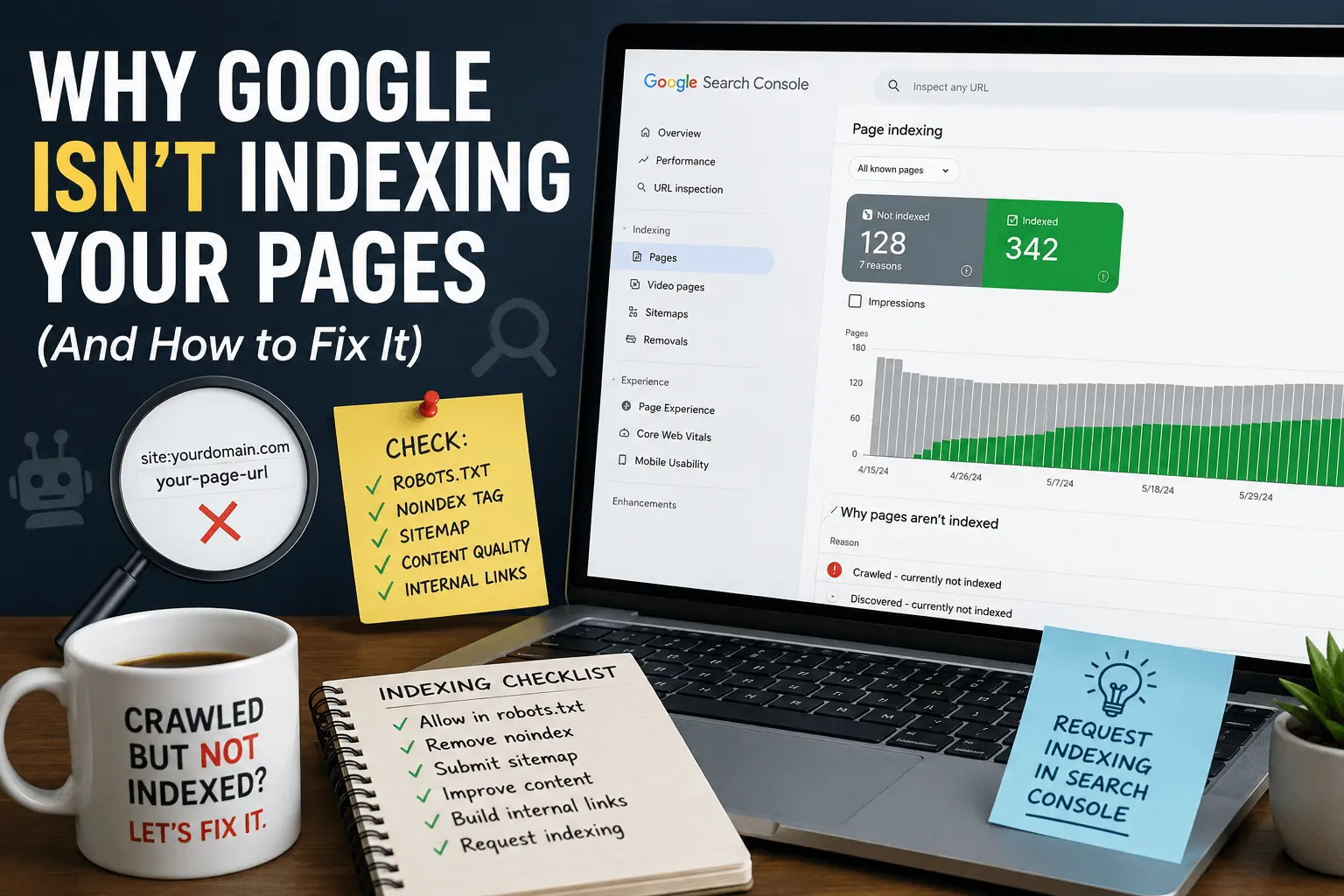
The simplest check: search Google for site:yourdomain.com/your-page-url. If the page shows up, it's indexed. If it doesn't, it's not.
But that method isn't perfect. Google sometimes shows different results to different people based on location and search history. I've had clients swear their page wasn't indexed because they couldn't find it from their office, while it showed up fine on my end. A more reliable check is Google Search Console.
Open Search Console. Go to the Pages report under Indexing. You'll see two tabs. Indexed pages and not indexed pages. Click the not indexed tab. If your page is listed there, Google knows about it but chose not to index it. The report tells you why.
You can also paste the specific URL into the URL Inspection tool at the top of Search Console. It tells you whether the page is indexed, when it was last crawled, and whether there are any issues preventing indexing.
If the page isn't in Search Console at all, Google hasn't discovered it yet. That's a different problem than discovery followed by non-indexing.
Our free indexability checker can scan multiple pages at once if you want a broader view.
How to Use Google Search Console to Diagnose Indexing Problems
Search Console is the starting point for almost every indexing investigation. Most debugging sessions eventually begin here.
The Pages report under Indexing breaks everything down into categories. Pages that are indexed. Pages that aren't. And the specific reasons why. Each reason links to a list of affected URLs and often includes documentation about how to fix the issue.
The URL Inspection tool gives you page-level detail. Paste a specific URL and Google tells you exactly what's happening. Whether the page is indexed. When it was last crawled. Whether the canonical tag is being respected. Whether there are mobile usability issues. Whether the page rendered properly. It's the most detailed diagnostic view available.
The Sitemaps section shows whether your submitted sitemaps are being processed correctly. Errors here usually mean Google is having trouble reading your sitemap or the URLs inside it don't match what Google can actually crawl.
The Security & Manual Actions section is separate from indexing reports. If a manual action is affecting your pages, it shows up here. Not in the indexing section. Check both.
Our guide to fixing crawl errors covers Search Console diagnostics in more detail.
Your Page Is Blocked by Robots.txt
This is the first thing I check. It's the most common cause of indexing problems I see.
robots.txt is a file that tells search engines which parts of your site they can and can't crawl. If your page is in a disallowed directory, Google won't crawl it. If Google doesn't crawl it, Google doesn't index it.
Check your robots.txt file. Go to yourdomain.com/robots.txt in your browser. Look for Disallow rules. If you see something like Disallow: /blog/ and your page is in the blog directory, that's your problem.
Sometimes a plugin adds disallow rules without you knowing. Security plugins. Maintenance mode plugins. Development plugins. They add Disallow: / during development and someone forgets to remove it when the site goes live. I've seen this happen more times than I can count. Once found a client site that had been blocking Google for eight months because a developer left the staging server robots.txt in place. Eight months of no organic traffic. The fix took thirty seconds.
The fix: edit your robots.txt file. Remove the disallow rule blocking your content. If you're not comfortable editing it manually, our free robots.txt generator creates a clean file. Test your changes with our robots.txt tester before pushing live.
After fixing, request indexing in Search Console. Paste the URL. Click "Request Indexing." Google recrawls the page without the block and indexes it. Our how to request indexing guide covers the process.
Our robots.txt guide covers the full details if you want a deeper explanation.
Your Page Has a Noindex Tag
A noindex tag tells search engines not to index the page. It's a line of code in the page header that says <meta name="robots" content="noindex">.
WordPress has a setting called "Discourage search engines from indexing this site." If that's checked, every page gets a noindex tag. This setting is meant for development sites. People forget to uncheck it when launching. I did this once on a site I'd been working on for weeks. Launched it. Checked rankings a few days later. Nothing. Checked the settings. Still had "discourage search engines" checked. Felt like an idiot. Fixed it in five seconds.
Some SEO plugins let you noindex individual pages. It's easy to accidentally check that box when editing a page. You're scrolling through settings, clicking things, and suddenly your best post has a noindex tag. Happens constantly.
Check your page source. Right click. View Page Source. Search for noindex. If you find it, that's your problem.
The fix: find where the noindex tag is coming from. WordPress reading settings. SEO plugin page settings. Theme settings. Remove the noindex directive. Request indexing in Search Console.
Google Chose Not to Index the Page
This is the most common reason in the Search Console Pages report. "Crawled - currently not indexed."
Google visited the page. Read the content. Decided not to index it. Search Console doesn't always give a detailed reason. The page didn't violate any guidelines. It just didn't meet the threshold for indexing.
This is the most frustrating one because there's no clear error to fix. The page looks fine to you. But Google disagrees.
Usually this means the content is thin. Not enough substance to justify a place in the index. A page with two sentences and a stock photo. A category page with no products and no description. A tag page with one post.
Sometimes it means the content is too similar to other pages on your site or elsewhere on the web. Google sees it as duplicate or near-duplicate and chooses not to add another version to the index. I've seen sites with fifty city pages that are identical except for the city name swapped out. Google indexes maybe ten of them. The rest sit in "crawled not indexed" forever.
Sometimes it means the page lacks authority signals. No internal links. No backlinks. Google found it but wasn't convinced it mattered. Pages that are orphaned, with nothing pointing to them, often end up here.
The fix: improve the content. Add more substance. Make it unique. Give it a clear purpose. Add internal links from other pages on your site. Make sure the page provides value that other pages on the same topic don't already provide.
If the page is genuinely thin and you can't improve it, consider whether it should exist at all. Not every page needs to be indexed. Some pages serve logged-in users or internal purposes. That's fine. Just don't expect Google to index them.
Our guide to crawled currently not indexed dives deeper into why Google rejects pages after visiting them.
Discovered – Currently Not Indexed
This is a different status from "Crawled – currently not indexed," and it's one of the most commonly searched indexing problems.
"Discovered – currently not indexed" means Google knows the URL exists. It found it through your sitemap or an internal link. But it hasn't crawled the page yet. The page is in the queue. Not rejected. Just waiting.
This happens for a few reasons. Crawl budget limitations on large sites. Google prioritizes other pages over yours. The page is new and Google hasn't gotten to it yet. The site has low authority and Google crawls it less frequently.
It's different from the crawled version of this status. Discovered means the page hasn't been evaluated yet. Crawled means it was evaluated and didn't make the cut. The fixes are different for each.
For discovered not indexed, the fix is usually about crawl prioritization. Add internal links from important pages. Submit an updated sitemap. Request indexing for the specific URL. Improve your site's overall crawl efficiency so Google can spend its budget on your important pages.
Our guide to discovered currently not indexed covers the full diagnosis and fix process for this specific status.
Why Pages Sometimes Drop Out of Google's Index
Getting indexed isn't permanent. Pages get removed from the index all the time. Sometimes for obvious reasons. Sometimes without explanation.
A page that was indexed for months can suddenly disappear. Google recrawled it. Reevaluated it. Decided it no longer belonged. The page might not have changed. Google's standards might have. The internet around the page got better while the page stayed the same.
Content decay is the most common cause. The information is outdated. The examples are stale. Competitors published newer, better versions of the same topic. Google recrawled and decided your version wasn't competitive anymore.
Technical issues during recrawl can also trigger removal. A server error when Google tries to visit. An accidental noindex tag added during an update. A robots.txt change that blocks the page. Google doesn't know these are temporary. It sees the error and removes the page.
Site-wide quality problems can drag down individual pages. If you publish a lot of low-quality content, Google's evaluation of your entire site drops. Pages that were previously indexed might get removed not because they changed, but because the site's overall quality signal declined.
When pages drop from the index, the fix is usually content improvement plus technical verification. Update the content. Make it current. Fix any technical issues. Request reindexing.
Our guide to why pages drop from index covers the recovery process in detail.
AI-Generated Thin Content and Indexing
This is a newer problem. I'm seeing it more in 2026.
Publishing hundreds of AI-generated pages doesn't guarantee indexing. Google still evaluates usefulness, uniqueness, and overall site quality. If many pages say roughly the same thing with slightly different wording, some may remain in "Crawled – currently not indexed" indefinitely.
The pattern is usually the same. Someone generates a thousand pages targeting long-tail keywords. The content is grammatically correct. It's technically unique. But it doesn't say anything new. It's the same surface-level information rephrased slightly differently on each page. Google reads a few of them, decides the rest aren't adding value, and stops indexing.
I've seen this happen with programmatic SEO sites that scaled too fast. The first hundred pages get indexed. The next nine hundred sit in limbo. The fix isn't technical. It's content quality. Each page needs to earn its place in the index by offering something genuinely different from every other page on the topic.
Google Hasn't Discovered the Page Yet
If the page isn't in Search Console at all, Google doesn't know it exists.
New sites have this problem most often. Google hasn't crawled the site yet. The domain is new. There are no backlinks pointing to it. It takes time.
The fix: submit your sitemap in Search Console. Our free XML sitemap generator creates a proper sitemap if you don't have one. Submit it under the Sitemaps section.
Then request indexing for the specific URL using the URL Inspection tool. Paste the URL. Click "Request Indexing." Google adds it to the crawl queue. Our how to request indexing guide walks through the process.
Add internal links to the page from other pages already indexed. Google discovers new pages by following links. If no links point to your new page, Google might not find it through sitemaps alone. A sitemap is a suggestion. Internal links are stronger signals.
If the page is important, you can also share it on social media or get a link from an external site. External links speed up discovery significantly.
Our crawl budget guide explains more about how Google prioritizes crawling.
Crawl Budget Issues
Large sites can have a different problem. Google allocates a crawl budget to each site. A certain number of pages per day. If your site has thousands of pages and Google's budget is limited, new pages might sit in the queue for weeks.
This is common on ecommerce sites with faceted navigation creating thousands of URL variations. Google spends its crawl budget on filter pages and parameter URLs instead of actual product pages. I once audited a site where Google was crawling 50,000 filter combination URLs and barely touching the actual product pages. That's a crawl budget problem.
The fix: optimize your crawl budget. Block low-value pages in robots.txt. Fix your internal linking so important pages get crawled first. Remove or canonicalize duplicate content. Make sure your server responds quickly. Slow servers reduce crawl rate.
Our crawl budget guide covers the full optimization process.
Poor Content Quality
Sometimes Google indexes a page. Then removes it. That's a quality signal.
Google's algorithms evaluate content quality. If they determine a page is low quality, they might deindex it even after initially including it. This happens with thin content, auto-generated content, scraped content, or content that doesn't satisfy search intent.
You'll see this in Search Console as pages moving from "Indexed" to "Not Indexed" over time. That decline is worth paying attention to. It means Google gave your page a chance and then changed its mind.
The fix is harder than technical issues. Improve the content. Make it more comprehensive. More original. More useful. Add expertise. Add examples. Answer the question better than anyone else.
Our SEO content writing guide covers content quality for search if you need direction.
Duplicate Content Issues
Google doesn't want to index multiple versions of the same content.
If your site has the same content on multiple URLs, Google picks one to index and ignores the rest. Sometimes it picks the wrong one. Sometimes it ignores all of them.
Common sources of duplicate content: www vs non-www versions. HTTP vs HTTPS versions. Trailing slash vs no trailing slash. Parameter URLs. Printer-friendly versions. Tag and category pages with identical excerpts. Product variants with identical descriptions.
This one sneaks up on people. Your site works fine. Everything looks normal. But Google sees five versions of the same page and doesn't know which one to trust.
The fix: use canonical tags. A canonical tag tells Google which URL is the primary version. All duplicate pages should point to the canonical. This consolidates indexing signals and prevents dilution.
Also set up redirects for duplicate versions. Redirect non-www to www. Redirect HTTP to HTTPS. Redirect trailing slash to whichever version you prefer.
Our free SEO checker identifies duplicate content issues alongside other problems.
Server Issues and Error Pages
If Googlebot visits your page and gets an error, it won't index it.
Server errors. 500 errors. Timeout errors. 503 errors. These tell Google your server can't handle the request. If errors persist across multiple crawl attempts, Google stops trying.
404 errors mean the page doesn't exist. This usually happens when pages are deleted without redirects. Google remembers the old URL. Tries to crawl it. Gets a 404. Removes it from the index.
One thing worth noting. A page that returns a 200 status but shows "not found" to users is a soft 404. Google might treat it like a real 404 and remove it. Make sure your pages return proper status codes.
Check Search Console's Pages report for error types. Server errors need hosting fixes. 404 errors need redirects or page restoration.
Our fix crawl errors guide covers the full troubleshooting process.
Page Is Behind a Login or Paywall
Google can't index pages that require authentication.
Membership sites. Course platforms. Employee portals. Any page that shows a login form to unauthenticated users. Googlebot sees the login form. It can't log in. It doesn't index the content behind it.
This is usually intentional. You don't want your private content indexed. But sometimes site owners don't realize their content is behind a login wall. They can see it because they're logged in. Googlebot isn't logged in. Different experience.
The fix depends on your goals. If you want the content indexed, make it publicly accessible. If you want to keep it private but still show it in search results, that's not really possible. Google indexes what it can access.
Sitemap Problems
Your sitemap tells Google which pages to crawl. If your sitemap is wrong, Google might not discover your pages.
Common sitemap problems include listing noindexed pages, listing pages blocked by robots.txt, listing 404 pages, listing canonicalized duplicates, or having a sitemap that's outdated and doesn't include new pages.
I've seen sitemaps that hadn't been updated in two years. New pages published weekly. Sitemap frozen in time. Google had no idea the new content existed.
Check your sitemap. Open it in a browser. Look for your missing pages. If they're not there, that's part of the problem.
Also check that your sitemap is submitted in Search Console. Go to the Sitemaps section. Confirm it's listed and shows no errors.
Our XML sitemap guide covers sitemap best practices in detail.
Manual Actions and Security Issues
In rare cases, Google applies a manual action that removes pages from the index.
This happens when Google's manual review team determines a site violates guidelines. Spam. Hacked content. Cloaking. Sneaky redirects. User-generated spam.
Check Search Console's Security & Manual Actions section. If there's a manual action, it'll be listed there with details and instructions for requesting a review.
Manual actions are serious. Fix the issue completely before requesting a review. Half-fixed problems get rejected and make the next review harder. I've seen people submit reconsideration requests three times for the same issue because they kept fixing the symptom instead of the root cause.
How to Fix Indexing Issues Step by Step
When a page isn't indexed, I follow this sequence.
First, check Search Console. URL Inspection tool. See what Google says about the specific page. If it's not in Search Console at all, submit your sitemap and request indexing.
If Search Console says "Crawled - currently not indexed," check for content quality issues. Is the page thin? Duplicate? Low value? Improve it. Our guide to crawled currently not indexed covers the fix process.
If Search Console says "Discovered – currently not indexed," the page is in the queue. Add internal links. Request indexing. Our guide to discovered currently not indexed covers the specific steps.
If Search Console shows an error, read the error details. Fix the specific problem. Robots.txt block. Noindex tag. Server error. Redirect chain.
If there are no errors and no obvious quality issues, check technical factors. Is the page in your sitemap? Does it have internal links? Is your crawl budget adequate? Is your server responsive?
After fixing the issue, request indexing in Search Console. Paste the URL. Click "Request Indexing." This speeds up the process. Our how to request indexing guide covers when to use this feature and when to skip it.
Then be patient. Indexing can take a few days to a few weeks. Don't keep requesting indexing for the same page repeatedly. Google notices that and it doesn't help. I've had site owners tell me they clicked "Request Indexing" seventeen times for the same page. That doesn't make it seventeen times faster. It probably just annoys whoever built the queue system.
Our crawlability and indexing checklist walks through the full diagnostic process.
How to Prevent Indexing Problems
Most indexing problems are preventable with a few habits.
Submit a clean sitemap. Keep it updated. Remove noindexed pages, blocked pages, and 404s from the sitemap. Submit it in Search Console.
Monitor Search Console regularly. Check the Pages report monthly. Look for changes. A sudden spike in non-indexed pages means something broke. Check whether pages are dropping from the index using our guide to why pages drop from index.
Test after making changes. Updated robots.txt? Test it. Launched a new site? Check for noindex tags. Changed your URL structure? Submit the new sitemap and set up redirects.
Add internal links to new pages immediately. Don't publish a page and wait for Google to find it. Link to it from other relevant pages on your site.
Build some authority over time. New sites have a harder time getting indexed than established ones. As your site earns backlinks and trust, indexing becomes faster and more reliable. Understanding how Google indexing works helps set realistic expectations.
Pages not getting indexed is frustrating. But it's usually fixable.
The problem is almost always one of a few things. Blocked by robots.txt. Tagged with noindex. Content too thin. Not discovered yet. Server errors. Sitemap problems. Each has a clear fix once you identify it.
The key is diagnosing correctly. Search Console tells you what's wrong most of the time. The URL Inspection tool gives you page-specific details. The Pages report gives you site-wide trends. Understanding the difference between discovered not indexed and crawled not indexed points you toward the right fix.
Start with the obvious stuff. Robots.txt. Noindex tags. Sitemap submission. Those fix the majority of indexing problems. If those aren't the issue, dig into content quality and crawl budget.
And don't panic if pages take a few weeks to appear. Especially on new sites. Indexing takes time. That's normal. Request indexing once. Fix the underlying issues. Wait. Check again. The pages usually show up. They almost always do. Just not on your schedule.